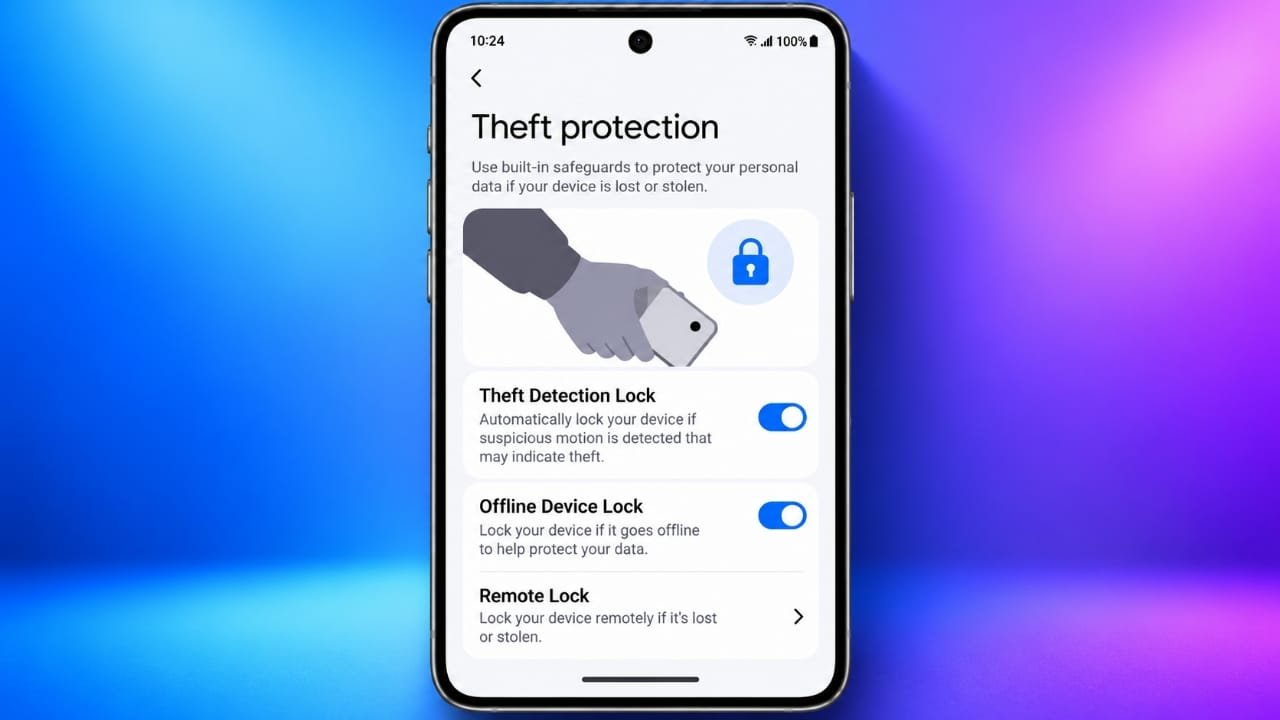
Android includes several security features designed to help protect your personal information if your phone is lost or stolen. One of them is Theft Detection Lock, which can automatically lock the screen when the phone detects movement that may suggest someone has taken it.
The feature is designed to protect your data. However, it does not stop someone from physically taking your phone or guarantee that you will be able to recover it.
Also read: How to Manage Favorite Contacts on iPhone Easily
Things to Check Before Enabling Theft Protection
Before turning on Theft Detection Lock, make sure your phone meets the basic requirements:
- Install the latest available Android and Google Play system updates.
- Set up a PIN, password, or pattern as your screen lock.
- Sign in to your Google Account.
- Keep Find Hub and location services enabled if you want to locate your phone later.
- Check whether Theft Detection Lock is supported on your phone and in your region.
Having these settings ready can also make other Android security features more useful.
Steps to Enable Theft Detection Lock
The exact menu names can vary depending on the phone manufacturer and Android version. On supported devices, you can usually find the feature by following these steps:
- Open Settings on your Android phone.
- Tap Google.
- Select All services.
- Find the Personal and device safety section.
- Tap Theft protection.
- Select Theft Detection Lock and turn it on.
- Follow any instructions shown on the screen.
If you cannot find the option, use the search bar inside Settings and type Theft Detection Lock or Theft protection.
Other Android Theft Protection Features
Theft Detection Lock is only one part of Android’s security tools. Depending on your device, you may also have access to the following options.
Offline Device Lock
Offline Device Lock can automatically secure the phone when it remains disconnected from the internet under certain conditions. This can be useful if someone tries to prevent the phone from communicating over Wi-Fi or mobile data.
The exact behavior and availability can differ between devices and Android versions.
Advertisements
Remote Lock
Remote Lock allows you to secure your phone remotely when certain requirements are met. It is worth setting this up before your phone goes missing, rather than waiting until after a theft occurs.
Follow Google’s on-screen verification process when enabling the feature.
Find Hub
Find Hub can help you locate and secure compatible devices connected to your Google Account. Depending on the situation and device, it may also provide options for remotely securing or erasing the phone.
Find Hub and Theft Detection Lock have different purposes. Theft Detection Lock can help secure the screen automatically, while Find Hub gives you tools to manage a missing device remotely.
What Theft Detection Lock Can Do
When supported theft-like movement is detected, Theft Detection Lock can automatically lock an unlocked phone.
This can give you an extra layer of protection by reducing the opportunity for someone to access your apps and personal information after taking the device.
However, the feature is not perfect. It may not recognize every theft situation, and its behavior can vary depending on the circumstances and device.
What It Cannot Do
Theft Detection Lock should not be treated as a complete anti-theft solution.
It cannot:
- Physically prevent your phone from being stolen.
- Guarantee that every theft attempt will be detected.
- Guarantee that a stolen phone will be recovered.
- Track a missing phone on its own.
- Replace a strong screen lock or secure Google Account.
- Replace Find Hub, backups, or other security measures.
For better protection, use several security features together instead of relying on one setting.
Theft Detection Lock Is Missing or Unavailable
If you do not see Theft Detection Lock in Settings, try these basic checks:
- Update Android and Google Play system components.
- Restart the phone.
- Make sure a PIN, password, or pattern is set as the screen lock.
- Open Settings > Google > All services and check the Theft protection section again.
- Search Settings for Theft protection.
If the option is still unavailable, your phone, Android version, account configuration, or region may not support the feature yet.
Google may also make theft-protection features available as part of its broader security offerings on supported devices, so availability can change over time.
What to Do If Your Android Phone Is Stolen
If your phone is stolen, avoid confronting anyone based only on a location shown on a map. Instead, use trusted services and contact the appropriate authorities when necessary.
You can take these steps:
- Use Find Hub from another trusted device to check the phone’s location and available security options.
- Contact your mobile carrier if you need to suspend your SIM or eSIM.
- Change passwords for important accounts if you believe someone may have accessed them.
- Report the theft to local authorities when appropriate.
- Consider remotely erasing the phone if you believe it is unlikely to be recovered. Keep in mind that erasing a device can affect future location and management options.
Also read: How to Turn Your iPhone or Android Phone Into a Mobile Hotspot
Final Thoughts
Theft Detection Lock is a useful extra layer of protection for supported Android phones. It works best when combined with a strong screen lock, updated software, account security, backups, and Find Hub.
If your phone supports the feature, enabling the available theft-protection options before anything goes wrong can help reduce the risk of unauthorized access to your personal information.
