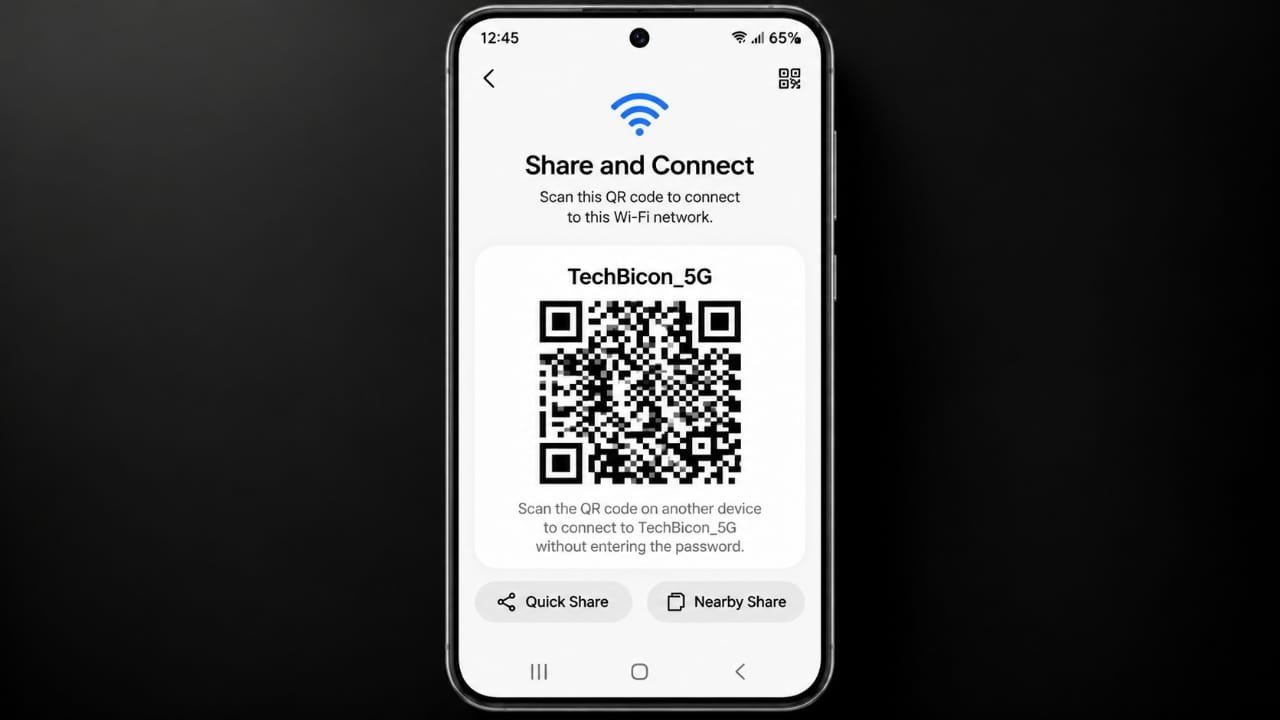
Sharing a Wi-Fi connection does not have to mean typing a long password. On many Android phones and newer iPhone software versions, you can display a QR code that another device can scan to join the network.
The exact steps can differ depending on the phone model and software version, but the basic process is straightforward.
Also read: How to Add Photo Filters on iPhone
Create a Wi-Fi QR Code on Android
Most modern Android phones include a built-in option for sharing the Wi-Fi network through a QR code.
Follow these steps:
- Connect your Android phone to the Wi-Fi network you want to share.
- Open Settings.
- Go to Network & internet, Internet, or Wi-Fi, depending on your phone.
- Select the network you are currently connected to.
- Look for Share, QR Code, or a similar option.
- Verify your identity using your PIN, password, fingerprint, or another screen-lock method if requested.
- A QR code should appear on the screen.
- Let the other person scan the code with their phone.
The menu can look different on Samsung, Google Pixel, OnePlus, Xiaomi, and other Android devices. If you cannot find the sharing option, open the Settings search and look for Wi-Fi, QR code, or Share Wi-Fi.
Create a Wi-Fi QR Code on iPhone
On recent iPhone software, saved Wi-Fi networks can be accessed through the Passwords app. From there, you may be able to display a QR code for a network.
Here’s how:
- Open the Passwords app on your iPhone.
- Unlock it using Face ID, Touch ID, or your device passcode.
- Select Wi-Fi.
- Choose the network you want to share.
- Tap Show Network QR Code.
- Allow the other person to scan the code with their phone’s camera.
If your iPhone does not show this option, you may still be able to share the Wi-Fi password directly with another nearby Apple device.
For Apple’s nearby-device password sharing to work, both devices should have Wi-Fi and Bluetooth enabled and be close to each other. The appropriate Apple Account contact information should also be saved on the devices.
Advertisements
How to Scan a Wi-Fi QR Code
Joining a network from a QR code is usually simple.
- Open the Camera app or your phone’s built-in QR scanner.
- Point the camera toward the Wi-Fi QR code.
- Keep the entire code visible on the screen.
- Wait for the Wi-Fi notification or link to appear.
- Tap it and follow the instructions to connect.
If the QR code is displayed on another phone, make sure the screen is bright enough and avoid strong reflections.
Tips for Sharing Wi-Fi Safely
A Wi-Fi QR code is convenient, but it can also contain the information required to connect to your network. Treat it like a password.
Here are some useful precautions:
- Use a guest Wi-Fi network when your router provides one.
- Avoid posting a private Wi-Fi QR code on a public website or social media.
- Do not enter your Wi-Fi credentials into an unfamiliar online QR-code generator.
- Create a new QR code when you change the Wi-Fi password or network settings.
- Use WPA2 or WPA3 security instead of outdated WEP security.
- Test the QR code with another device before printing it or giving it to guests.
A guest network can be especially useful when visitors only need internet access and should not have access to devices on your main network.
What to Do If the Wi-Fi QR Code Does Not Work
Sometimes a QR code may scan correctly but still fail to connect. Try these solutions.
There Is No Share or QR Code Option
Make sure your phone has a secure screen lock enabled. You can also check for system updates and look through the connected Wi-Fi network’s details.
Some manufacturers place the QR option in a different location.
The Code Scans but the Phone Cannot Connect
The QR code may contain outdated network information. Generate a new code from the currently connected network and try again.
If the problem continues, check the Wi-Fi name, password, and security settings on the router.
The Camera Cannot Read the Code
Try increasing the brightness of the screen displaying the QR code. Clean the camera lens, reduce glare, and move the phone slightly closer or farther away.
A Work Phone Does Not Allow Wi-Fi Sharing
Company-managed phones can have restrictions that prevent users from sharing saved network credentials. In that situation, the restriction may be controlled by the organization’s device-management policy.
A Guest Can Connect but Cannot Access Other Devices
This may be normal on a guest network. Many routers intentionally isolate guest devices from computers, printers, and other devices connected to the main network.
Also read: How to Manage Favorite Contacts on iPhone Easily
Final Thoughts
Using a built-in Wi-Fi QR-code feature is one of the easiest ways to let someone join your network without manually typing the password.
The safest approach is to use your phone’s built-in sharing feature rather than giving your Wi-Fi credentials to an unknown online QR-code service. For visitors, a separate guest network is also a good option when your router supports it.
Remember that anyone who can access a private Wi-Fi QR code may be able to obtain the network’s connection details. Keep printed or displayed codes in a controlled place and create a new one whenever you change the Wi-Fi password.
