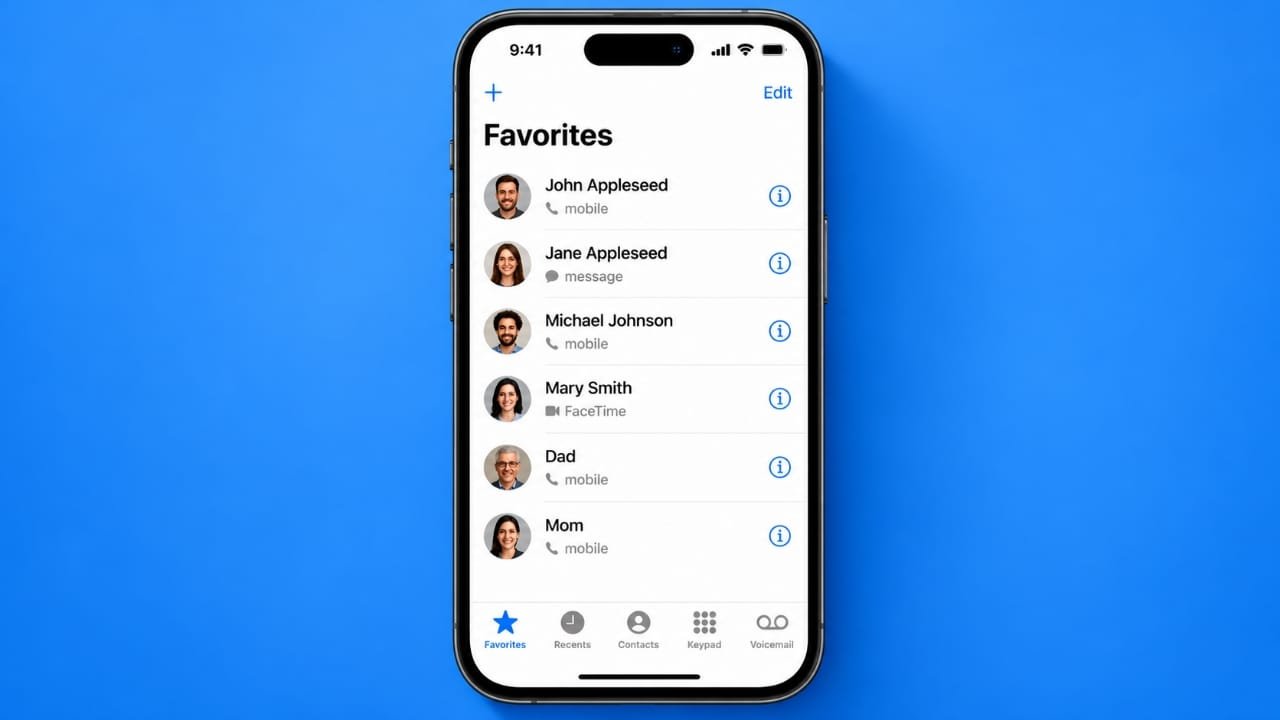
The Favorites feature on an iPhone makes it easier to reach people you contact often. Instead of searching through your entire contact list every time, you can keep selected people in a separate shortcut list.
You can add or remove contacts from Favorites without changing the actual contact saved on your iPhone.
Also read: How to Transfer Photos from iPhone to MacBook Air
How to Add Someone to Favorites
Adding a person to your Favorites list only takes a few steps:
- Open the Phone app on your iPhone.
- Go to Contacts and find the person you want to add.
- Open their contact card.
- Scroll down and select Add to Favorites.
- If the iPhone asks you to choose an option, select the phone number or communication method you want to use.
The contact will then become available through your Favorites shortcuts.
It is important to understand that Favorites are only shortcuts. Removing someone from Favorites does not delete their contact information from your iPhone.
Where Can You Find Your Favorite Contacts?
The location of Favorites can depend on the Phone app layout available on your iPhone.
With the Unified layout, favorite contacts may be displayed near the top of the Calls section. They can appear as a group of contact shortcuts.
If you are using the Classic layout, you can access them through the Favorites section of the Phone app.
If the layout looks different on your iPhone, check the available filters or Phone app settings. The exact appearance can change between iOS versions.
Advertisements
How to Remove or Reorder Favorites
You can change your Favorites list whenever you want.
If your Phone app uses the Unified layout, open Calls and look for the editing option for Favorites. From there, you can remove contacts or change their position.
With the Classic layout, open Favorites and tap Edit.
Use the remove option to take a contact out of the Favorites list. If the interface provides a reorder handle, you can also move contacts into a different position.
These controls may look slightly different depending on the iOS version installed on your iPhone.
Can Favorites Bypass Do Not Disturb?
Favorites and Focus settings are separate features.
If you want calls or messages from certain people to reach you while a Focus mode is active, go to:
Settings > Focus
Choose the Focus mode you use, such as Do Not Disturb, and open its People settings.
You can then select people who are allowed to contact you and review the available call settings. Some Focus modes also provide an option for repeated calls.
Do not assume that every contact added to Favorites will automatically bypass every Focus setting. Check the People permissions for the specific Focus mode you are using.
Favorites Are Different From Emergency Contacts
A Favorite contact should not be confused with an emergency contact.
Favorites are mainly designed to give you quick access to people you contact regularly. Emergency contacts are managed separately through your iPhone’s Medical ID and can be used with Emergency SOS features.
If you want someone to be listed as an emergency contact, add that person through the Medical ID settings. Simply adding the person to Favorites does not make them an emergency contact.
What to Do If Favorites Are Missing or Duplicated
Sometimes a contact may disappear from Favorites or appear more than once. This can happen if there are contact-sync or duplicate-contact issues.
Try these basic checks:
- Make sure the person’s contact card still exists.
- Check that the contact has the correct phone number or other communication details.
- Look for duplicate contact cards and use the available duplicate-merging option.
- Check your contact account settings under Settings > Apps > Contacts > Contacts Accounts.
- If the problem started after a synchronization issue, try closing and reopening the Phone app.
- Restarting the iPhone can also help with temporary software problems.
Avoid signing out of your entire Apple Account as an initial troubleshooting step. Doing so can affect other information that is synchronized with your account.
Also read: How to Add Photo Filters on iPhone
Keep Your Favorites List Useful
There is no need to add every contact to Favorites. Keeping the list limited to people you contact frequently can make it more useful and easier to manage.
For regular communication, use Favorites as a quick shortcut. For Focus permissions, review the relevant People settings separately. And for emergency contacts, use Medical ID rather than relying on the Favorites list.
The exact buttons and layout may vary depending on the iOS version and Phone app configuration, so if something looks different on your iPhone, check the current settings available on your device.
