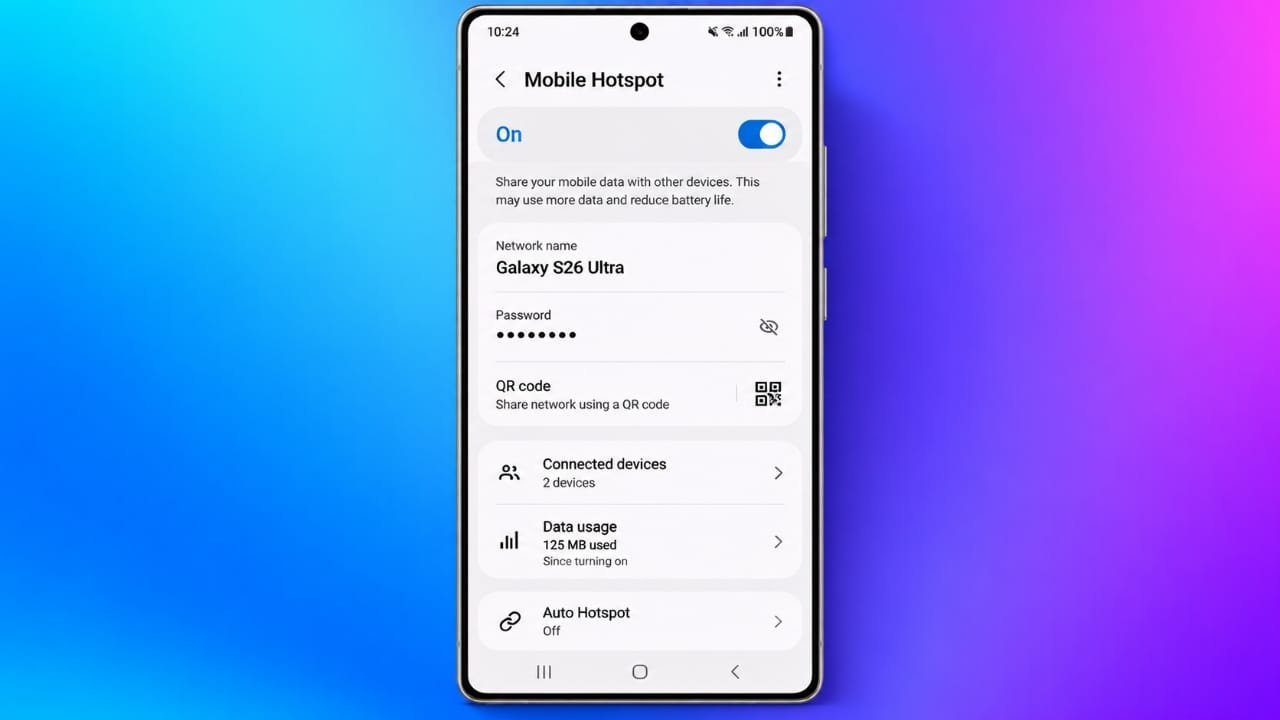
If you do not have access to Wi-Fi, your smartphone can share its mobile data with a laptop, tablet, or another phone. This feature is commonly called a mobile hotspot.
Setting it up is usually simple, although the exact steps can be different depending on your phone model and Android version.
Also read: How to Create and Share a Wi-Fi QR Code on Android and iPhone
Before Using Your Phone as a Hotspot
There are a few things worth checking before you start:
- Make sure your mobile plan supports hotspot or tethering.
- Check how much hotspot data is included in your plan.
- Create a strong Wi-Fi password that other people cannot easily guess.
- Keep your phone connected to a charger if you plan to use the hotspot for a long time.
- Avoid heavy downloads or high-quality video streaming if your data allowance is limited.
- Remember that hotspot performance depends on your mobile signal and network traffic.
How to Turn an iPhone Into a Hotspot
You can share your iPhone’s mobile data with nearby devices using Personal Hotspot.
- Open Settings on your iPhone.
- Tap Personal Hotspot.
- If you do not see it, go to Cellular or Mobile Service and look for Personal Hotspot.
- Turn on Allow Others to Join.
- Check the Wi-Fi password shown on the screen. You can change it if needed.
Now open the Wi-Fi settings on your laptop, tablet, or other device. Look for your iPhone’s name, select it, and enter the hotspot password.
The hotspot normally uses your iPhone’s device name. If you want to change that name, go to Settings > General > About > Name.
Some Apple devices can also connect through Apple’s Instant Hotspot feature when the supported devices use the same Apple Account and have the required settings enabled.
Connect an iPhone Using a USB Cable
Wi-Fi is not the only way to share an iPhone’s internet connection. You can also use a USB cable with a compatible computer.
First, turn on Personal Hotspot on the iPhone. Then connect the phone to the computer using the appropriate USB cable. If the iPhone asks whether you trust the computer, follow the on-screen instructions.
Advertisements
On Windows, the required Apple software may need to be installed depending on your setup.
USB tethering can be useful when you want a more direct connection. It can also help keep the phone charged while the connection is being used.
How to Use a Samsung Galaxy as a Hotspot
Samsung Galaxy phones have a built-in Mobile Hotspot option.
- Open Settings.
- Tap Connections.
- Select Mobile Hotspot and Tethering.
- Tap Mobile Hotspot.
- Check or change the network name and password.
- Turn on the hotspot.
After that, open Wi-Fi settings on the device you want to connect and select your Galaxy phone from the available networks.
How to Use a Google Pixel or Other Android Phone
The names of Android settings can vary between manufacturers, but the basic process is similar.
On many Google Pixel phones:
- Open Settings.
- Tap Network & internet.
- Select Hotspot & tethering.
- Tap Wi-Fi hotspot.
- Set the hotspot name and password if necessary.
- Turn on Use Wi-Fi hotspot.
If you are using another Android brand and cannot find these options, open Settings and search for hotspot. This is often the quickest way to locate the feature.
Depending on the phone, Android may also support other tethering methods, such as USB or Bluetooth.
How to Keep Your Mobile Hotspot Secure
Your hotspot creates a small wireless network, so it is important to protect it.
Use a strong password instead of something easy to guess, such as your name, birthday, or phone number. If your phone provides WPA2 or WPA3 security, use the available secure option.
It is also a good idea to check which devices are connected to your hotspot. If you notice a device you do not recognize, disconnect it and change your Wi-Fi password.
When you are finished sharing your connection, turn the hotspot off. This can help prevent unwanted connections and reduce unnecessary battery and data usage.
Common Mobile Hotspot Problems
Hotspot option is missing
First, make sure mobile data is turned on. Your carrier may also need to support hotspot service on your plan.
Another device cannot connect
Restart both devices and try connecting again. You can also remove or “forget” the saved Wi-Fi network on the other device and enter the hotspot password again.
The connection is slow
Hotspot speed is affected by your cellular signal and network conditions. Try moving to an area with better reception and disconnect devices that are not being used.
Some phones allow you to switch between different Wi-Fi hotspot bands, such as 2.4 GHz and 5 GHz. If an older device cannot connect, trying another supported band may help.
The iPhone hotspot cannot be found by an older device
If an older device has trouble detecting your iPhone’s hotspot, try enabling Maximize Compatibility in the Personal Hotspot settings. This can improve compatibility with some older devices.
Mobile data is being used too quickly
Connected computers and tablets may perform background tasks such as cloud backups, software updates, or video streaming. These activities can consume a significant amount of mobile data.
If your data allowance is limited, pause unnecessary background activity while using the hotspot.
Mobile Hotspot vs. Sharing an Existing Wi-Fi Network
A mobile hotspot uses your phone’s cellular data to provide internet access to another device.
This is different from simply sharing the password for a Wi-Fi network you are already connected to. If you only want to let someone connect to an existing Wi-Fi network, a Wi-Fi QR code can be a more suitable option.
Also read: How to Manage Favorite Contacts on iPhone Easily
Final Thoughts
Turning your smartphone into a mobile hotspot is a convenient way to get another device online when regular Wi-Fi is unavailable.
Before using it, check your mobile plan and make sure hotspot usage is supported. Protect the connection with a strong password, keep an eye on connected devices, and turn the hotspot off when you no longer need it.
For longer connections, USB tethering can also be worth considering when your phone and computer support it.
