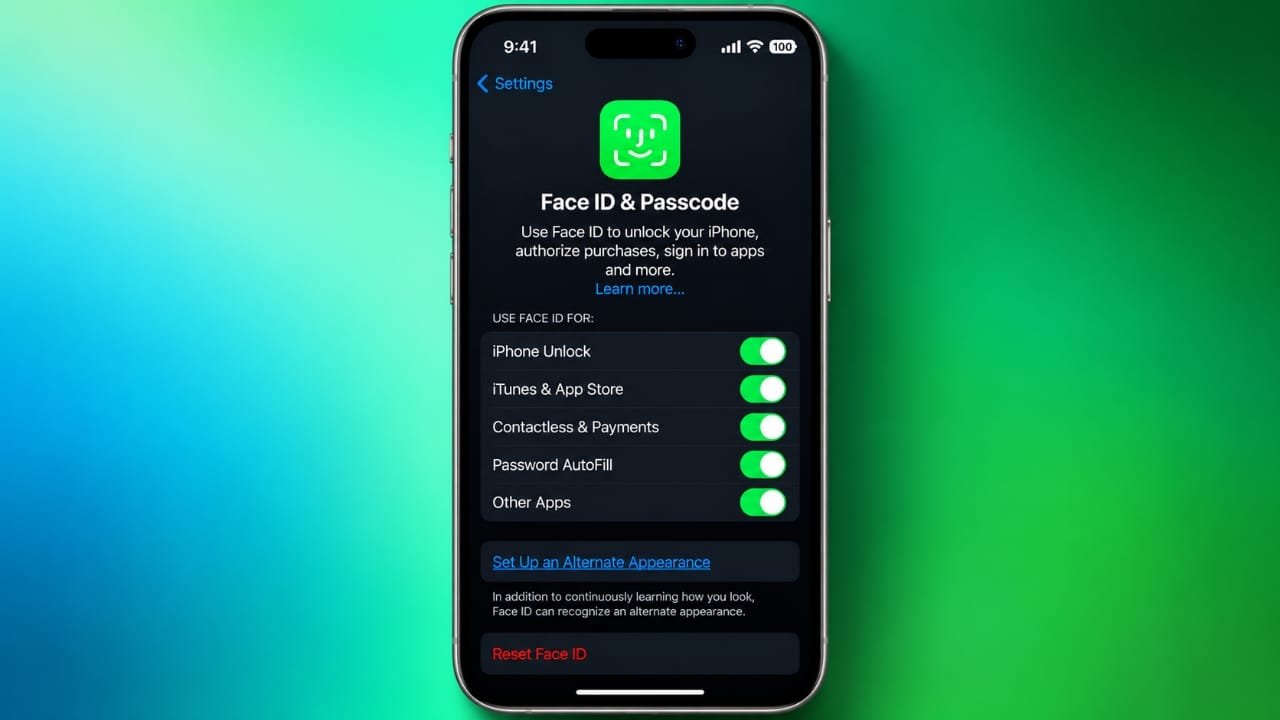
Face ID lets you unlock a compatible iPhone, confirm payments, approve purchases, and sign in to supported apps using facial recognition. Setting it up only takes a few minutes, and your iPhone passcode remains available as a backup security method.
Also read: How to Turn On Theft Detection Lock on Android
How to Set Up Face ID
To configure Face ID for the first time:
- Open Settings and select Face ID & Passcode.
- Enter your device passcode when asked.
- Tap Set Up Face ID, then choose Get Started.
- Hold the iPhone upright in portrait mode. Keep it roughly 10–20 inches (25–50 cm) from your face.
- Look directly at the screen and position your face within the on-screen frame.
- Slowly move your head so the camera can complete the first scan.
- Follow the instructions for the second scan.
- Tap Done when the setup is finished.
If moving your head is difficult, iOS may provide an accessibility option that allows you to complete the process differently.
During setup and everyday use, make sure the TrueDepth camera area is clean and not covered by anything. Face ID is available only on compatible iPhone and iPad Pro models.
Decide What Face ID Can Be Used For
You can control which features are allowed to use Face ID from Settings > Face ID & Passcode.
Depending on your device and software version, you can use Face ID for things such as:
- Unlocking your iPhone
- Apple Pay authentication
- App Store purchases
- Password AutoFill
- Signing in to supported apps
The Other Apps section lets you check which installed apps have requested permission to use Face ID.
Unlock Your iPhone With Face ID
Using Face ID to unlock your iPhone is straightforward:
- Wake the screen by lifting the phone, tapping the display, or pressing the side button.
- Look at the screen.
- Wait for the lock icon to indicate that authentication has succeeded.
- Swipe up from the bottom of the screen to open the phone.
Your iPhone may still require the passcode instead of Face ID in certain situations. For example, a passcode is required after the device restarts and can also be required after several unsuccessful authentication attempts or certain security-related actions.
Advertisements
Use Face ID for Apple Pay and Purchases
Face ID can also be used when confirming supported payments and purchases.
For Apple Pay, double-click the side button and look at your iPhone when authentication is requested. Then hold the top of the phone near the contactless payment terminal.
For App Store purchases, make sure the relevant Face ID option is enabled in Settings > Face ID & Passcode. When prompted, double-click the side button and authenticate with Face ID.
The exact steps can vary depending on the iPhone model, iOS version, and payment or purchase settings.
Use Face ID With a Mask
Some compatible iPhone models support Face ID with a Mask. On supported devices and software versions, you can find this option under:
Settings > Face ID & Passcode
Turn on the mask-related option and follow the instructions to complete another facial scan.
This feature focuses on the visible area around your eyes. Apple notes that standard Face ID, which can use more of the face, provides stronger recognition security when available.
Add an Alternate Appearance
Face ID includes an Alternate Appearance option for situations where your appearance has changed significantly and recognition is affected.
To add one, go to:
Settings > Face ID & Passcode > Set Up an Alternate Appearance
Then follow the scanning instructions.
This option should not normally be used to register another person’s face. Anyone whose face is registered may be able to authenticate with Face ID and access features that you have authorized.
What to Do if Face ID Stops Working
If Face ID is not recognizing you properly, try these basic steps:
- Check that Face ID is enabled for the feature you are trying to use.
- Clean the area around the TrueDepth camera.
- Remove anything that may be blocking the camera.
- Make sure your eyes, nose, and mouth are visible during normal Face ID use.
- Restart the iPhone.
- Install any available iOS update that supports your device.
- If necessary, go to Settings > Face ID & Passcode > Reset Face ID and complete the setup again.
If Face ID setup repeatedly fails or your iPhone reports a problem with the TrueDepth camera, contact Apple Support or an authorized service provider. Be cautious of apps or websites that claim they can replace or repair Apple’s built-in Face ID system through software alone.
Temporarily Turn Off Face ID
You can temporarily prevent Face ID from being used for the next unlock.
Press and hold the side button together with either volume button until the power and emergency options appear. Then lock the iPhone. The next time it is unlocked, the passcode will be required.
If you want to remove your stored Face ID setup completely, open:
Settings > Face ID & Passcode > Reset Face ID
You can then set up Face ID again later if you choose.
Keep Your Passcode Enabled
Face ID does not replace your iPhone passcode. The passcode remains an important part of the device’s security system and is required in situations where Face ID cannot or should not be used.
For better protection, use a passcode that others cannot easily guess and avoid sharing it with anyone.
Also read: How to Turn Your iPhone or Android Phone Into a Mobile Hotspot
Final Thoughts
Face ID can make everyday iPhone tasks more convenient while keeping authentication tied to your device. Once it is configured, you can use it for unlocking, payments, purchases, passwords, and supported apps.
If recognition becomes unreliable, checking the camera area, reviewing your Face ID settings, restarting the phone, or registering your face again can often help. For persistent hardware or camera problems, Apple’s official support channels are the safest option.
