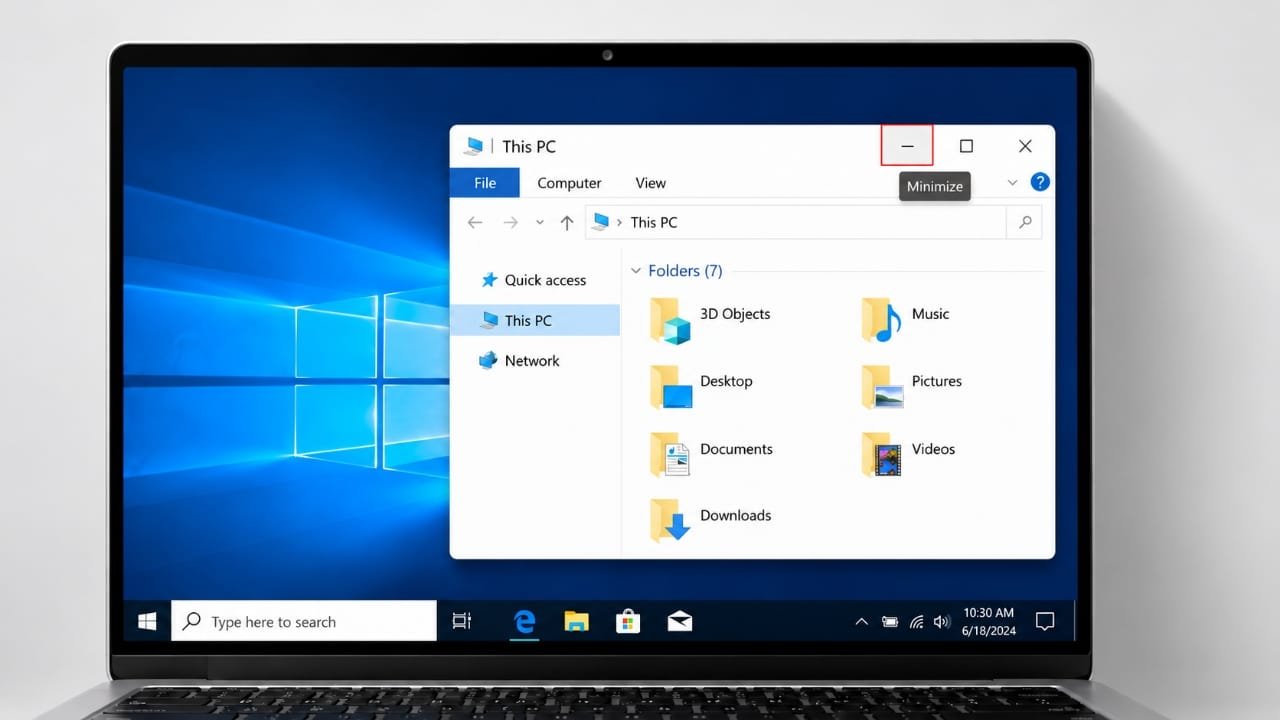
Minimizing a window is a simple way to clear your screen without closing an application. It lets you hide a program temporarily and return to it whenever you need it. Whether you use Windows 10 or Windows 11, you can minimize a window with a mouse, a keyboard shortcut, or the taskbar.
In this guide, you will learn the easiest ways to minimize one window, hide all open windows, and handle situations where the usual shortcuts do not work.
Also read: How to Change Your Profile Picture on Twitch
Quick Answer: Minimize a Window
The fastest way to minimize the active window is to press Windows key + Down Arrow. You can also click the minus (–) button in the upper-right corner of the window.
To minimize multiple windows at once, press Windows key + M. If you want to switch to the desktop and back, use Windows key + D.
1. How to Minimize an Individual Window
There are several ways to minimize a single application without closing it.
Method 1: Use the Minimize Button
This is the easiest option if your mouse or touchpad is working.
- Open the application you want to minimize.
- Look at the upper-right corner of its window.
- Click the minus (–) button next to the maximize and close buttons.
The application will disappear from the screen but remain open. You can reopen it from the taskbar whenever you need it.
Method 2: Use a Keyboard Shortcut
Windows provides a shortcut that allows you to minimize a window without using the mouse.
- Select the window you want to hide.
- Press Windows key + Down Arrow.
If the window is maximized, the first press may restore it to its previous size. Press the shortcut again to minimize it.
This method is useful when you want to work faster or prefer using keyboard commands.
Method 3: Use the Taskbar
You can also use the taskbar to manage an open application.
Find the application’s icon on the taskbar and click it. Depending on your Windows version and the application’s current state, clicking the icon may minimize the active window or switch between open windows.
If the window does not minimize, use the minus button or the keyboard shortcut instead.
2. How to Minimize All Open Windows
If your desktop is crowded with applications, you can hide several windows at once. Windows offers two useful keyboard shortcuts for this purpose.
Use Windows + M
Press Windows key + M to minimize all supported open windows.
This shortcut is helpful when you want to reach the desktop quickly without closing your programs. Your applications remain open and can be accessed again from the taskbar.
Use Windows + D
Press Windows key + D to show the desktop by hiding the open windows from view.
Press the same shortcut again to return to the previous window arrangement in normal circumstances.
Although these shortcuts may seem similar, they serve slightly different purposes. Windows + M minimizes windows, while Windows + D toggles between the desktop and your open windows.
Click the Show Desktop Area
You can also reach the desktop without using the keyboard.
On Windows 10 and Windows 11, look for the narrow Show Desktop area at the far-right end of the taskbar, if available. Clicking it hides the open windows and displays the desktop.
Clicking the area again can restore the previous window arrangement. Its availability and behavior may depend on your taskbar settings.
3. How to Minimize a Window Without a Working Mouse
If your mouse or touchpad stops responding, you can still manage your open applications with the keyboard.
Follow these steps:
- Press Alt + Tab to move between open applications.
- Keep holding Alt and press Tab until the correct application is selected.
- Release the keys to switch to that application.
- Press Windows key + Down Arrow to minimize it.
Another option is to press Alt + Space while the window is active. If the application provides the standard window menu, select Minimize using the keyboard.
These methods are useful when you need to hide a window but cannot click its controls.
4. Why Is a Window Not Minimizing?
Sometimes, the usual keyboard shortcuts or minimize button may not work as expected. This can happen with certain full-screen games, media applications, dialog boxes, or programs that have stopped responding.
Here are a few things you can try:
- Switch applications: Press Alt + Tab to move to another open program.
- Exit full-screen mode: Press Esc or use the application’s full-screen control if available.
- Try another shortcut: Use Windows + Down Arrow or Windows + D, depending on what you want to do.
- Check whether the application is frozen: Give it a moment to respond before trying other actions.
If an application remains unresponsive, open Task Manager by pressing Ctrl + Shift + Esc. You can check whether the program is responding and decide what to do next.
Be careful when ending a task in Task Manager. Closing an unresponsive application this way may cause you to lose unsaved work.
5. Do These Shortcuts Work on Windows 10 and Windows 11?
Yes. The main shortcuts covered in this guide are available in both Windows 10 and Windows 11, although individual applications may behave differently.
Here is a quick reference table:
| Action | Keyboard shortcut |
|---|---|
| Minimize the active window | Windows + Down Arrow |
| Minimize all supported windows | Windows + M |
| Show or hide the desktop | Windows + D |
| Switch between open applications | Alt + Tab |
| Open the window menu | Alt + Space |
| Open Task Manager | Ctrl + Shift + Esc |
Learning these commands can make everyday computer tasks quicker and easier. You can use them to organize your workspace, move between applications, and access the desktop without closing programs.
Also read: How to Share a Twitch Link With Friends and Followers
Final Thoughts
Minimizing a window in Windows 10 or Windows 11 takes only a moment. Use the minus button for a simple mouse-based method, Windows + Down Arrow to minimize the active window, or Windows + M to hide multiple windows at once.
If your goal is to reach the desktop and return to your previous work quickly, Windows + D is another convenient option. Once you become familiar with these shortcuts, managing several open applications becomes much easier.
Related Windows tip: You can also learn how to open or mount an ISO image in Windows without installing additional software, depending on the file and your system’s built-in features.

Advertisements