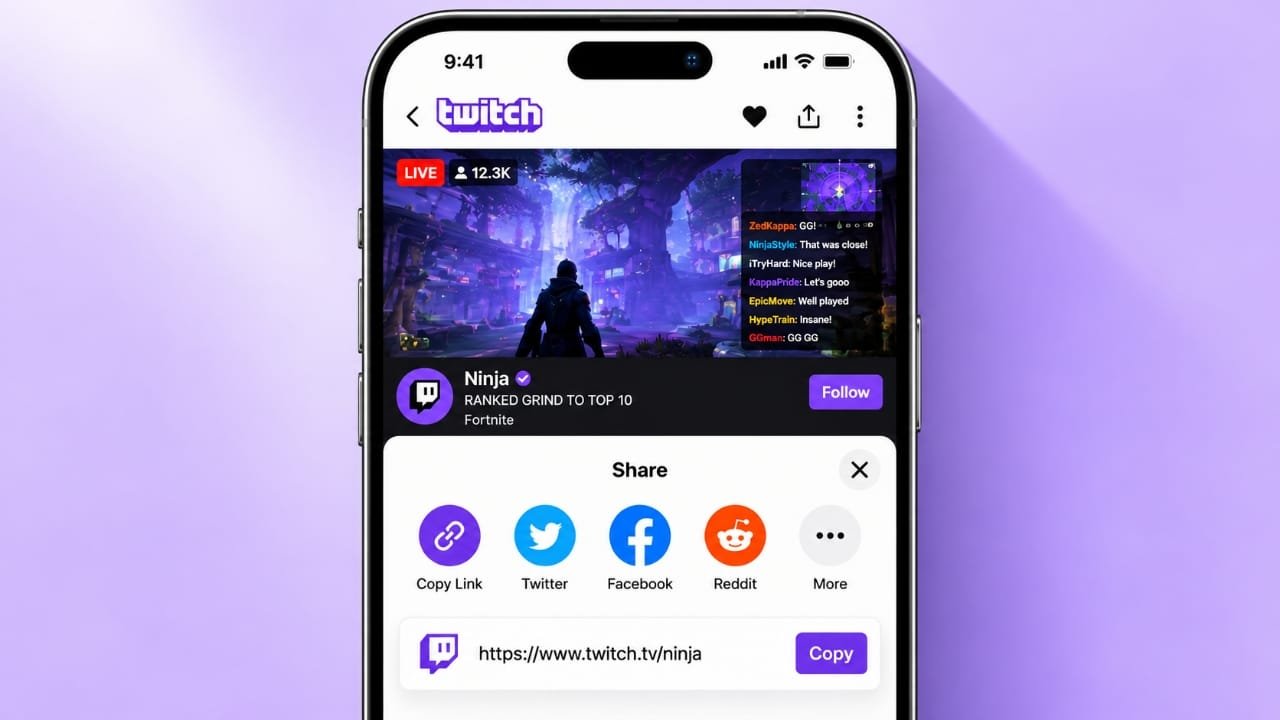
Twitch makes it easy to share your favorite streamers, live broadcasts, past videos, and clips with other people. You can send a link through WhatsApp, email, social media, or any messaging app. The process is simple on both desktop and mobile devices.
In this guide, you will learn how to copy and share different types of Twitch links so others can quickly find the content you want them to watch.
Also read: How to Turn Off Active Status on Instagram in 2026
How to Share a Twitch Channel Link
If you want someone to visit a particular Twitch channel, you can share its direct URL. Follow these steps:
- Open Twitch in your browser or launch the Twitch mobile app.
- Visit the channel you want to share.
- Look for the Share option or sharing icon.
- Select Copy Link or choose one of the available apps.
- Send the link to your friends or followers.
You can also create a channel link using the creator’s username. For example, if the username is exampleuser, the link will look like this:
https://www.twitch.tv/exampleuser
Replace the example username with the correct one before sharing the link. This format is also useful when promoting your own Twitch channel on a website, social media profile, or blog.
How to Share a Live Twitch Stream
Want your friends to watch a live broadcast with you? Sharing the stream link is a convenient way to invite them.
Here’s what to do:
- Open the Twitch channel that is broadcasting live.
- Find the Share button near the video player or in the available menu.
- Choose the option to copy the link.
- Paste it into a message or select a supported social app.
- Send the link along with a short description of the stream.
For example, you could mention the game being played, the topic being discussed, or why you think your friends might enjoy watching.
If you are promoting a stream scheduled for a later time, include the date and time zone. This helps people understand when to tune in.
How to Share a Twitch VOD or Clip
You do not have to share only live broadcasts. Twitch also allows viewers to access supported past broadcasts and clips, making it easier to recommend a particular moment from a stream.
Sharing a past broadcast
A past broadcast, often called a VOD, lets viewers watch previously recorded content when it is available.
To share one:
- Open the creator’s Twitch channel.
- Find the past broadcast you want to recommend.
- Open the video and select the Share option.
- Copy the link or send it through an available app.
Some sharing options may allow you to link to a particular timestamp. This is helpful when you want someone to watch a specific moment instead of searching through the entire video.
Sharing a Twitch clip
Clips are short highlights taken from streams. They can feature funny reactions, impressive gameplay, interesting conversations, or memorable moments.
To share a clip, open it on Twitch, select the Share option, and copy its link. You can then send it to a friend or post it on your preferred social platform.
Creators can also organize and manage their clips through Twitch’s creator tools, including the Content Manager.
Keep in mind that the available sharing options may differ depending on the content, device, and Twitch interface.
How to Share a Twitch Link From the Mobile App
You can share Twitch content directly from your smartphone without opening a desktop browser.
Follow these steps:
- Open the Twitch app.
- Navigate to the channel, live stream, past broadcast, or clip you want to share.
- Tap the Share icon.
- If you cannot find it, check the three-dot menu for additional options.
- Select Copy Link or choose an available messaging or social app.
- Send the link to the person or group you have in mind.
If you copy the link, open your preferred messaging app, paste it into the conversation, and send it.
The exact position of the sharing option may change as Twitch updates its mobile app.
Tips for Sharing Twitch Links Effectively
A working link is useful, but a little extra information can make it easier for people to understand what you are sharing.
Here are some simple tips:
- Explain the content: Let people know whether the link opens a channel, live stream, past broadcast, or clip.
- Add a short message: A brief introduction can encourage friends to check out the content.
- Include the correct time: When promoting an upcoming broadcast, mention the date, time, and relevant time zone.
- Use the original URL: A direct Twitch link is generally easier to recognize and verify than an unfamiliar shortened link.
- Check important links: Open the link in a private browsing window or another browser to confirm that it leads to the intended public content.
- Check privacy and availability: Some content may become unavailable, be removed, or have access restrictions, so avoid assuming every link will remain accessible.
These small steps can make your shared links clearer and more useful.
Can Someone Watch a Twitch Link Without an Account?
In many cases, people can open public Twitch channels and watch available streams or videos without signing in. However, certain features may require a Twitch account.
For example, viewers generally need to sign in to follow a channel, participate in chat, or subscribe. Some content or account-specific features may also have additional access requirements.
If someone cannot access a link, ask them to check whether the content is still available and whether Twitch requires them to sign in.
Also read: How to Fix a Mouse That Is Not Working on Windows or Mac
Final Thoughts
Sharing a Twitch link is an easy way to introduce friends and followers to a creator or help them discover an interesting stream. You can share an entire channel, a live broadcast, a past video, or a short clip using the platform’s built-in sharing options.
Whether you use Twitch on a computer or a smartphone, the basic process is similar: open the content, select Share, and copy the link or send it through an available app. Add a little context to your message, and your recipients will have a clearer idea of what they are about to watch.

Advertisements