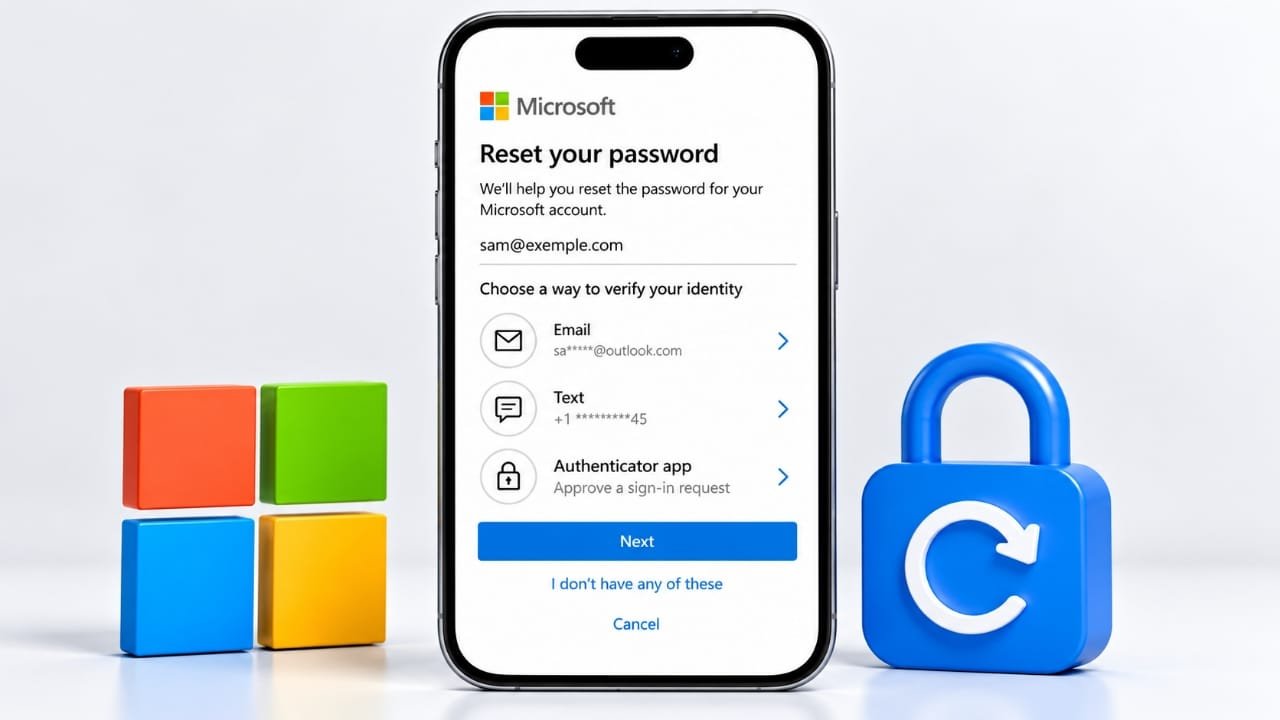
Forgetting your Microsoft account password can be frustrating, especially when you need to access Outlook, OneDrive, or other Microsoft services. Fortunately, you can usually reset your password by verifying your identity and creating a new one.
In this guide, you will learn how to reset a forgotten Microsoft account password, recover access when your registered phone or email is unavailable, and improve your account security after recovery.
Also read: How LTE Networks Work: A Simple Guide to 4G LTE
Quick Answer
To reset your Microsoft account password, visit the official Microsoft sign-in page and select Forgot password? Enter your account details, verify your identity using an available security method, and follow the instructions to set a new password.
If you cannot access your registered email address or phone number, use Microsoft’s official Sign-in Helper to explore the recovery options available for your account.
Steps to Reset Your Microsoft Account Password
Follow these steps to create a new password for your Microsoft account.
1. Open the Microsoft Sign-In Page
Visit the official Microsoft account sign-in page. Enter the email address, phone number, or Skype name associated with your account.
Select Next to continue.
2. Select the Password Recovery Option
When prompted to enter your password, choose Forgot password? This will take you to the password recovery process.
Microsoft may display different recovery options depending on the security information linked to your account.
3. Verify Your Identity
Choose an available verification method, such as your registered email address, phone number, or an authenticator option, if offered.
You may need to confirm part of your email address or phone number before requesting a security code. Enter the code you receive and follow the instructions on the screen.
Never share this code with another person.
4. Create a New Password
After successfully verifying your identity, follow Microsoft’s instructions to set a new password.
Choose a strong password that you have not used for another account. A longer password made from several unrelated words or a unique combination of characters can help improve security.
Once the reset is complete, use your new password to sign in to your Microsoft account.
Important: Always use Microsoft’s official website for password recovery. Avoid third-party websites that promise to unlock accounts or request your login credentials.
What If You Cannot Access Your Recovery Email or Phone?
You may still have recovery options if your registered phone number or email address is no longer available. The steps depend on your account’s security settings.
Start by visiting Microsoft’s official Sign-in Helper. It can guide you toward the recovery options applicable to your situation.
If Microsoft directs you to the account recovery form, provide as much accurate information as possible. You may be asked for details that help establish ownership of the account, such as previous passwords or information about Microsoft services you have used.
For a better chance of completing the process, submit the form from a device and location you commonly use to access the account.
Microsoft may not be able to restore access if the information provided is insufficient.
What If Two-Step Verification Is Enabled?
Two-step verification adds another layer of protection to your Microsoft account. Depending on your settings, signing in or recovering access may require an additional verification method.
If you have enabled two-step verification but cannot access any of your registered methods, recovery may be limited. Microsoft support cannot simply bypass these security protections.
This is why keeping backup verification methods and storing any available recovery codes in a secure place is important.
Microsoft Account Password vs. Windows PIN
A Microsoft account password and a Windows Hello PIN are two different sign-in credentials. Knowing which one you need can save time when troubleshooting a login problem.
A Microsoft account password is used to access your Microsoft account and supported services. A Windows Hello PIN is configured for signing in to a particular Windows device.
If you see a PIN prompt on your computer, you may not need to reset your Microsoft account password.
To check your available options:
- Go to the Windows sign-in screen.
- Select Sign-in options.
- Choose the appropriate sign-in method.
- If you have forgotten your PIN, select I forgot my PIN, when available, and follow the instructions.
If you have forgotten your Microsoft account password instead, use Microsoft’s password recovery process.
How to Secure Your Microsoft Account After Resetting the Password
Once you regain access, take a few minutes to review your account security. These steps can help reduce the risk of unauthorized access.
Check Recent Sign-In Activity
Review your recent sign-in activity through Microsoft’s official account security pages. Look for unfamiliar locations, devices, or login attempts.
If you notice activity you do not recognize, follow Microsoft’s recommended security steps to protect your account.
Update Your Recovery Information
Make sure your registered phone number and recovery email address are current. Where possible, add more than one verification method so that losing access to a single method does not leave you without alternatives.
Use a Unique Password
Avoid using the same password across multiple websites. If another service experiences a data breach, a reused password could put your Microsoft account at risk.
A reputable password manager can help you generate and store unique passwords securely.
Enable Additional Sign-In Protection
Consider enabling two-step verification or using a passkey if the option is available for your account and devices.
These methods add protection beyond a password alone. Keep your recovery information updated so you can still access your account if you lose a device.
Keep Verification Codes Private
Never give your password or one-time security code to someone who contacts you unexpectedly. Be cautious of messages claiming that your account will be suspended unless you share a code or click an unfamiliar link.
Access Microsoft’s official website directly whenever you need to review security settings or recover your account.
Frequently Asked Questions
Can I reset my Microsoft password without my old password?
Yes. If you have forgotten your current password, you can start the official recovery process and verify your identity using an available method.
Can I recover my account without my registered phone number?
Possibly. Microsoft may offer another verification method or direct you to its account recovery process. The available options depend on your account’s security configuration.
Is my Windows PIN the same as my Microsoft password?
No. A Windows Hello PIN is associated with a particular device, while your Microsoft account password is used to authenticate your account. Use the recovery option that matches the credential you have forgotten.
What should I do if Microsoft cannot verify my identity?
Use the official Sign-in Helper and follow the recovery instructions provided for your account. Enter accurate information and avoid submitting false details. Recovery is not guaranteed if Microsoft cannot establish that you own the account.
Is it safe to use third-party password recovery websites?
You should be cautious. Use Microsoft’s official recovery pages instead of websites that ask for your password, security codes, or other sensitive information. Unofficial services may expose your account to unnecessary risks.
Also read: How to Minimize a Window in Windows 10 and Windows 11
Final Thoughts
Resetting a forgotten Microsoft account password is usually straightforward when you can access one of your registered verification methods. Start with Microsoft’s official sign-in page, verify your identity, and create a new, unique password.
If your usual recovery options are unavailable, the Sign-in Helper can guide you through the alternatives Microsoft provides. After regaining access, review your sign-in activity, update your recovery details, and enable additional security measures where possible.
Taking these precautions can make future account recovery easier and help keep your personal information protected.

Advertisements