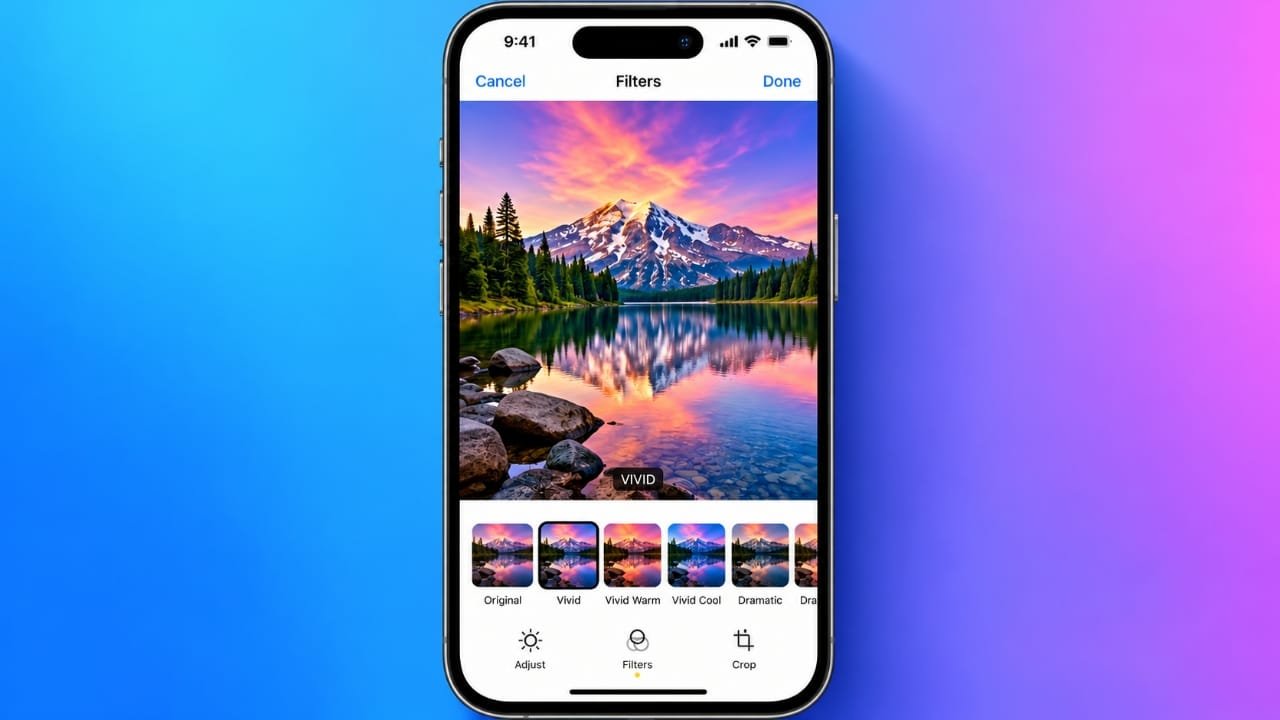
iPhone makes it easy to give your photos a different look without installing another app. The built-in Photos app includes several filters that can make an image brighter, darker, more dramatic, or black and white.
The best part is that these edits are reversible. You can change the filter later or return the picture to its original appearance.
Also read: How to Set Up and Use a Personal Hotspot on iPhone
How to Apply a Filter to a Photo
You can add a filter to an existing photo directly from the Photos app.
- Open the Photos app on your iPhone.
- Find and open the photo you want to edit.
- Tap Edit.
- Select the Filters option.
- Swipe through the available filter effects.
- Tap a filter to preview how it looks.
- Use the intensity slider to make the effect stronger or softer.
- Compare the edited version with the original if needed.
- Tap Done when you are happy with the result.
Depending on your iPhone and software version, you may see options such as Vivid, Dramatic, Mono, Silvertone, and Noir.
How to Remove a Filter From a Photo
If you do not like the filter later, you can change or remove it.
Open the edited photo and tap Edit. From there, choose another filter or select the original appearance.
If you want to remove all edits that were made to the photo through the Photos app, choose Revert and then select Revert to Original.
Keep in mind that this removes other edits as well, not just the filter.
Apply the Same Edit to Several Photos
If you have multiple pictures taken in similar lighting, you can copy the edits from one photo and apply them to others.
Advertisements
First, open the edited photo and tap the More button. Select Copy Edits and check the adjustments that you want to transfer.
Next, return to your photo library and tap Select. Choose the photos you want to edit, tap the More button, and select Paste Edits.
This can save time when working with a large group of similar pictures. However, check each photo afterward because the same filter strength may not look equally good on every image.
Filters and Photographic Styles Are Different
iPhone filters and Photographic Styles are not exactly the same thing.
Filters are generally applied while editing a photo in the Photos app. Photographic Styles, available on supported newer iPhone models, are designed to affect the look of photos captured with the camera.
Because the available camera features can vary between iPhone models and iOS versions, the exact options you see may be different from those on another iPhone.
Tips for Making Filters Look Natural
A filter does not always need to be used at full strength. In many cases, a lighter effect produces a more natural result.
Here are a few simple tips:
- Start with a low filter intensity and increase it gradually.
- Adjust brightness or exposure before applying a strong filter.
- Check skin tones carefully when editing portraits.
- Avoid using several strong effects on the same image.
- Compare the edited photo with the original before saving.
- If the picture is important, check how it looks on another screen before printing or publishing it.
Small adjustments can often make a photo look better without making the filter obvious.
Using Third-Party Photo Editing Apps
The built-in Photos app is enough for many everyday edits, but third-party photo editors can provide additional filters, presets, and adjustment tools.
Before using another editing app, check its subscription or payment terms and review the permissions it requests. If an app does not need access to your entire photo library, consider giving it access only to selected photos when that option is available.
It is also a good idea to keep the original photo before using an editor that permanently changes an exported copy.
Also read: How to Transfer Photos from iPhone to MacBook Air
Final Thoughts
Adding a filter on an iPhone takes only a few steps. Open the photo in Photos, select Edit, choose Filters, pick an effect, and adjust its strength before saving.
For the best results, avoid making every photo heavily filtered. A subtle effect often works better, especially for portraits and pictures you plan to share publicly.
Since Photos editing is generally reversible, you can experiment with different looks and return to the original image whenever you change your mind.
