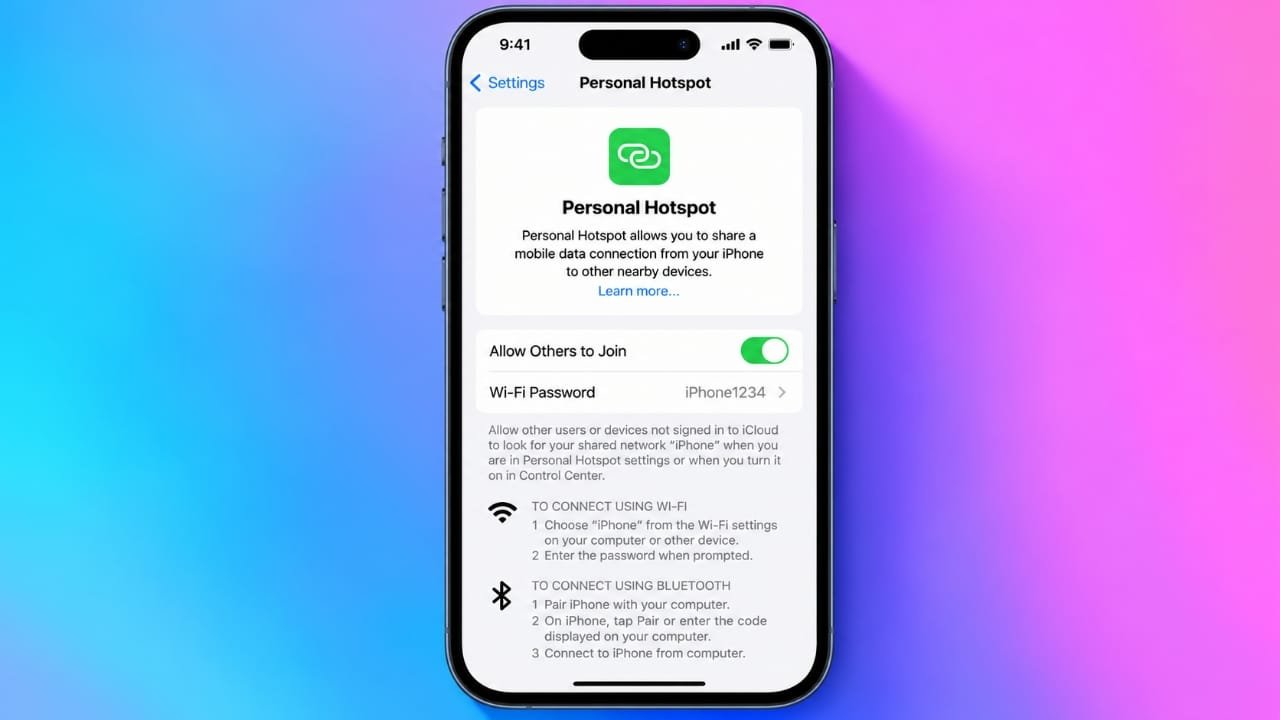
An iPhone can share its mobile internet connection with a laptop, tablet, another phone, or other compatible devices. This feature is called Personal Hotspot.
To turn it on, go to Settings > Personal Hotspot and enable Allow Others to Join. On some iPhones, you may need to open Settings > Cellular or Mobile Service first. Once enabled, other devices can connect using the Wi-Fi password shown on your iPhone.
Also read: WT Hub – Web Scanner App Review: Features, Usage and Safety Guide
Things to Check Before Using Personal Hotspot
Before sharing your mobile data, make sure a few basic requirements are met:
- Mobile or cellular data should be turned on.
- Your mobile carrier and current plan should support Personal Hotspot.
- Check whether your plan has a separate hotspot data limit or speed restriction.
- Keep your iPhone connected to a charger if you expect to use the hotspot for a long time.
How to Turn On Personal Hotspot
Setting up a hotspot on an iPhone is straightforward.
- Open the Settings app.
- Tap Personal Hotspot.
- If you do not see this option, open Cellular or Mobile Service and look for the hotspot settings there.
- Turn on Allow Others to Join.
- Tap Wi-Fi Password and set a secure password.
When connecting a device for the first time, keeping the Personal Hotspot screen open can sometimes make it easier for the other device to detect your iPhone.
Connect a Laptop or Other Device Using Wi-Fi
You can connect most Wi-Fi-enabled devices to your iPhone hotspot.
- Open the Wi-Fi settings on the device you want to connect.
- Find your iPhone in the available network list.
- Select it.
- Enter the Personal Hotspot password.
- Wait for the device to establish the connection.
Your iPhone’s network name is normally based on the device name. If you want to change it, go to:
Settings > General > About > Name
After you finish using the hotspot, consider turning it off. This can help prevent another device from connecting later and using your mobile data when you do not expect it.
Advertisements
Use Instant Hotspot With Other Apple Devices
Apple devices can offer a more convenient way to connect to an iPhone hotspot.
Nearby Apple devices using the same Apple Account may be able to use the iPhone’s Personal Hotspot without requiring you to manually type the Wi-Fi password. Family Sharing can also allow approved family members to connect, depending on the settings.
Make sure Wi-Fi and Bluetooth are enabled on the devices. Then open the Wi-Fi menu on the device you want to connect and select the iPhone.
Connect Your iPhone to a Computer Using USB
If you want a more direct connection, you can use a USB cable.
- Turn on Personal Hotspot on your iPhone.
- Connect the iPhone to the computer with a USB cable that supports data transfer.
- If your iPhone asks whether you trust the computer, tap Trust and follow the instructions.
- Give the computer a moment to recognize the connection.
On Windows computers, installing the current Apple Devices app or the required Apple software may be necessary if the USB network connection is not detected.
A USB connection can be useful when you want a more consistent connection to a computer. It can also charge the iPhone while it is connected. However, a computer may reconnect to the iPhone automatically while the cable remains plugged in.
What to Do If Personal Hotspot Is Not Working
Sometimes a hotspot may not appear or another device may fail to connect. Try these basic troubleshooting steps:
- Confirm that mobile data works normally on the iPhone.
- Turn Allow Others to Join off and then turn it back on.
- Restart both the iPhone and the device you are trying to connect.
- Remove or forget the saved hotspot network on the other device and connect again.
- Check whether your iPhone has the latest available software update.
- Try Maximize Compatibility if an older device cannot find or connect to the hotspot.
- Contact your mobile carrier if the Personal Hotspot option is missing or your hotspot data appears to be restricted.
If the problem continues, the carrier may need to check whether your current mobile plan supports hotspot usage.
How to Protect Your Data and Battery
Using Personal Hotspot can consume a significant amount of mobile data, especially when several devices are connected.
A few simple precautions can help:
- Use a strong and unique hotspot password.
- Change the password if you notice an unfamiliar device connected.
- Avoid unnecessary cloud backups while using mobile data.
- Be careful with large software downloads and high-resolution video streaming.
- Check your carrier’s data usage information regularly.
- Keep the iPhone in a well-ventilated place during long hotspot sessions.
- Connect the iPhone to power if you plan to share the connection for an extended period.
Remember that devices connected to the hotspot use the iPhone’s cellular connection, so their internet activity may count toward your mobile data allowance.
Also read: How to Buy Ringtones on iPhone from the Tone Store
Final Thoughts
Personal Hotspot is a convenient way to share an iPhone’s mobile internet connection when Wi-Fi is unavailable. Wi-Fi is usually the simplest option for connecting multiple devices, while USB can be useful when you want a direct connection to a computer.
Before using the feature regularly, check your carrier’s hotspot rules and data limits. Keep your hotspot password private and turn off the feature when you no longer need it.
