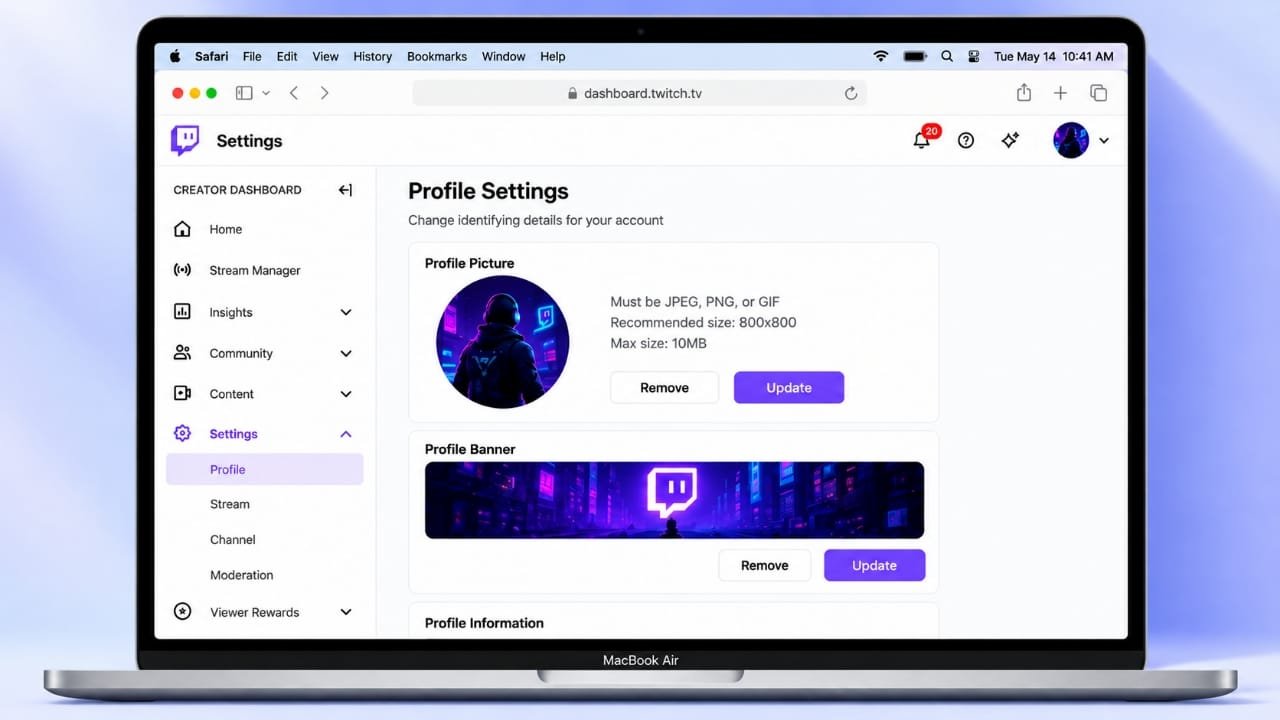
Your Twitch profile picture helps viewers recognize your channel while browsing streams, chatting, or checking your profile. Whether you want to use a personal photo, a gaming logo, or a custom avatar, updating your picture is a simple process.
You can change your Twitch profile picture using a desktop browser or the mobile app. Follow the steps below to update your image and learn how to fix common upload problems.
Also read: How to Fix a Mouse That Is Not Working on Windows or Mac
How to Change Your Twitch Profile Picture on Desktop
If you use Twitch on a computer, you can update your profile picture through the Creator Dashboard. Here is how to do it:
- Open Twitch in your browser and sign in to your account.
- Click your profile icon in the upper-right corner.
- Select Creator Dashboard from the menu.
- Find Settings in the left sidebar and open Channel.
- Go to the Brand tab.
- Locate the profile picture section and choose the option to add or update your image.
- Select a picture from your computer.
- Adjust the crop if Twitch asks you to do so, then save your changes.
Your new profile picture should appear on your channel after the update is processed. If it does not show immediately, try refreshing the page.
How to Change Your Twitch Profile Picture on Mobile
You can also update your profile picture using the Twitch mobile app. The exact menu names may vary depending on your device and app version.
Follow these steps:
- Open the Twitch app on your Android phone or iPhone.
- Tap your profile picture to open the account menu.
- Look for Account Settings, Edit Profile, or a similar option.
- Find the profile picture setting.
- Choose a new image from your device.
- Crop or adjust the picture if needed.
- Save the changes and check your profile.
If you cannot find the option to change your picture in the app, open Twitch in a desktop browser and use the Creator Dashboard instead.
What Image Size and Format Should You Use?
Choosing a suitable image can help your Twitch profile look clear and professional. Before uploading a picture, check its format, file size, and dimensions.
Here are the recommended details:
- Image format: JPEG, PNG, or GIF, subject to Twitch’s current upload requirements.
- File size: Keep the image within Twitch’s stated upload limit, which may change over time.
- Image dimensions: A square image of at least 200 × 200 pixels is a practical starting point.
- Image quality: Use a clear picture that remains recognizable when displayed at a small size.
A square image is usually a good choice because Twitch displays profile pictures in a circular shape in many areas of the platform. Leave enough space around your subject so important details are not cropped.
For the latest requirements, check Twitch’s official help documentation.
Why Is My New Twitch Profile Picture Not Showing?
Sometimes, your updated picture may not appear immediately. Several common issues can cause this problem.
1. The Image Has Not Updated Everywhere
Your browser or app may still display an older version of your profile picture. Refresh the page, close and reopen the app, or wait a little while before checking again.
2. The File Format or Size Is Not Supported
An image that exceeds the upload limit or uses an unsupported format may fail to upload. Check Twitch’s current requirements and try a smaller JPEG or PNG file if necessary.
3. The Upload Is Not Completing
If the upload keeps failing, check your internet connection and try again. You can also open Twitch in another browser or temporarily disable browser extensions that might interfere with the website.
If the problem continues, clearing the browser cache may help. Keep in mind that this can remove locally stored website data.
4. The Picture Looks Cropped
Twitch may display your profile picture inside a circle, which can cut off details near the edges. Choose a square image with the main subject positioned near the center to avoid losing important parts of the picture.
Tips for Choosing a Good Twitch Profile Picture
Your profile picture does not need to be complicated to make your channel recognizable. A few simple choices can improve its appearance.
- Keep it simple: Use a clear face, logo, or distinctive symbol.
- Choose strong contrast: Make sure the main subject stands out from the background.
- Avoid small text: Words and tiny details can become difficult to read at smaller sizes.
- Check the circular crop: Keep important features away from the edges.
- Stay consistent: Using similar colors or visual elements across your Twitch banner and other social profiles can help viewers recognize your channel.
If you are building a gaming channel, you might use a custom logo or character that reflects your content. For a personal channel, a clear and well-lit photo can work just as well.
Also read: How to Share a Twitch Link With Friends and Followers
Final Thoughts
Changing your Twitch profile picture is straightforward once you know where to find the relevant settings. On desktop, the Creator Dashboard provides the main controls for updating your channel’s branding. On mobile, you can look for the profile editing options in the app.
Use a clear, appropriately sized image, check Twitch’s current upload requirements, and allow some time for the new picture to appear. With a suitable profile image, viewers can recognize your channel more easily while browsing Twitch.

Advertisements