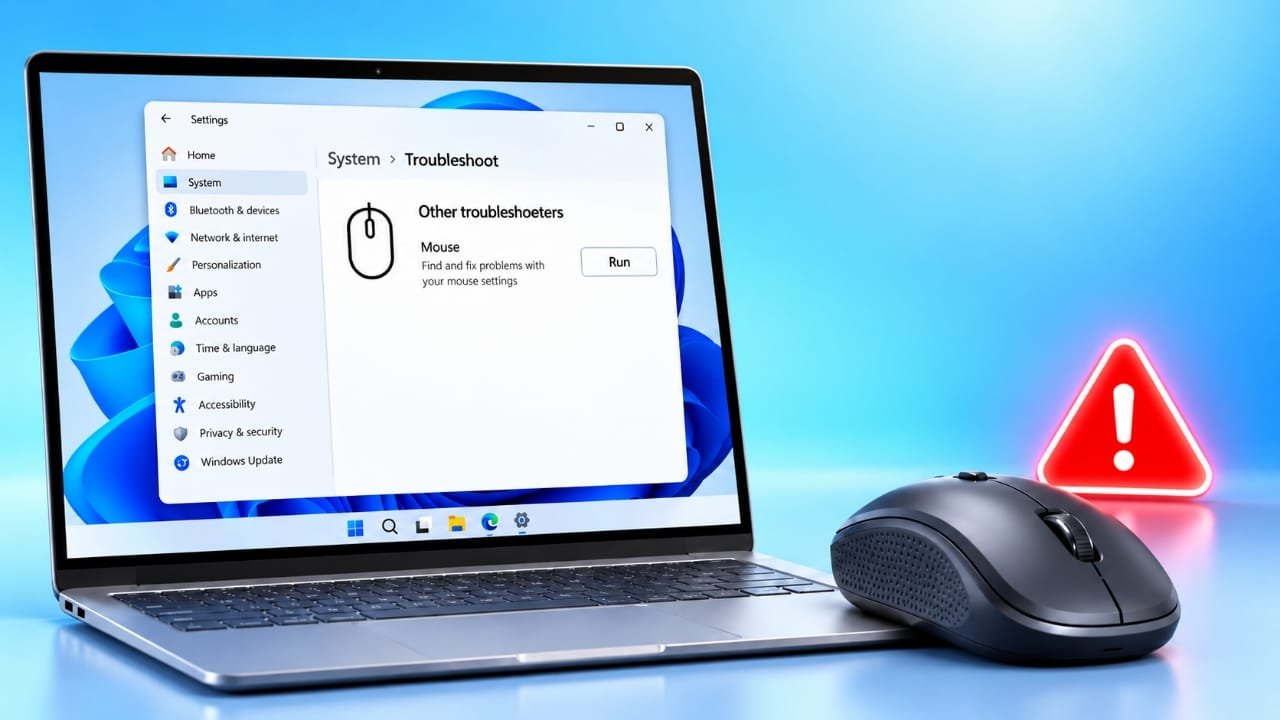
A computer mouse makes everyday tasks easier, but it can be frustrating when it suddenly stops working. Sometimes, the problem comes from a loose connection, weak batteries, or incorrect settings. In other cases, outdated drivers or Bluetooth issues may prevent the mouse from responding properly.
The good news is that you can solve many mouse problems with a few simple checks. This guide explains how to troubleshoot a mouse on Windows 10, Windows 11, and Mac computers.
Also read: How to Set Up and Use Face ID on an iPhone
Quick Fixes for a Mouse That Is Not Working
Before changing your computer settings, try these basic solutions:
- Turn the mouse off and back on.
- Replace the batteries or charge the mouse.
- Unplug a wired mouse and connect it to another USB port.
- Restart your computer.
- Clean the mouse sensor and check the surface you are using.
- Reconnect the mouse if it uses Bluetooth.
- Test the mouse on another computer to check whether the problem is with the mouse or your system.
If the mouse still does not work, follow the instructions for your operating system below.
1. Check the Mouse and Its Connection
Start by checking the mouse itself. A simple power or connection issue may be responsible for the problem.
For a wireless mouse: Make sure the power switch is on. If the mouse uses replaceable batteries, install a fresh set. For rechargeable models, connect the charging cable and allow the battery to charge.
For a wired mouse: Disconnect the USB cable and wait a few seconds before reconnecting it. Try a different USB port to rule out a problem with the original port.
For a wireless USB receiver: Remove the receiver and plug it into another available USB port. If possible, connect it directly to the computer instead of using a USB hub.
Also, inspect the cable and connector for visible damage. Avoid using a mouse with exposed wires or a damaged plug.
2. Clean the Sensor and Check the Surface
A dirty sensor or unsuitable surface can prevent the cursor from moving smoothly.
Turn off the mouse and gently remove dust or dirt from the sensor area using a soft, dry cloth. Avoid applying liquid directly to the sensor.
Next, place the mouse on a clean, non-reflective surface. Some optical mice may struggle on glass, shiny desks, or surfaces with unusual patterns. A mouse pad can help provide more consistent tracking.
If the cursor still does not move, continue with the software troubleshooting steps.
How to Fix a Mouse That Is Not Working on Windows 10 or Windows 11
Windows users can try the following methods to resolve connection, driver, and settings problems.
3. Reconnect a Bluetooth Mouse
If your mouse connects through Bluetooth, it may have lost its connection to the computer.
Follow these steps:
- Open the Settings app.
- Select Bluetooth & devices in Windows 11. In Windows 10, open Devices and select Bluetooth & other devices.
- Check that Bluetooth is enabled.
- Turn the mouse off and back on.
- If it still does not connect, select the mouse from the saved device list and choose the option to remove or forget it.
- Put the mouse into pairing mode and add it again through the Bluetooth settings.
Keep the mouse close to your computer while pairing. Make sure its battery has enough charge before trying again.
4. Update the Mouse Driver
A driver problem can sometimes cause a mouse to stop responding correctly. Updating the driver may help resolve the issue.
To check for an update:
- Right-click the Start button.
- Open Device Manager.
- Find and expand Mice and other pointing devices.
- Right-click your mouse or its related device entry.
- Select Update driver and follow the instructions.
You can also open Settings > Windows Update and check for available updates.
If the mouse stopped working immediately after a driver update, open the device’s Properties window in Device Manager. Under the Driver tab, check whether Roll Back Driver is available. This option may help if the recent update caused the problem.
The available options can differ depending on your mouse model and Windows version.
5. Restart Your Computer
Restarting Windows can resolve temporary software problems that interfere with connected devices.
Save any open work, open the Start menu, and select Power > Restart. Once the computer starts again, check whether the mouse works normally.
If the mouse remains unresponsive, test it on another computer. If it works there, the issue may be related to your Windows settings, drivers, USB ports, or Bluetooth connection.
How to Fix a Mouse That Is Not Working on Mac
Mac users can also troubleshoot a mouse by checking its connection, Bluetooth settings, and system software.
6. Check Bluetooth Settings on Mac
If you use a Bluetooth mouse, first make sure Bluetooth is enabled.
- Open the Apple menu.
- Select System Settings.
- Open Bluetooth.
- Confirm that Bluetooth is turned on.
- Switch the mouse off and on, then wait for it to reconnect.
If the mouse does not reconnect, find it in the Bluetooth device list. Open its information options and select Forget This Device if that option is available. Then put the mouse into pairing mode and connect it again.
If the mouse is not listed, check its battery level and make sure it is ready to pair.
7. Check a Wired Mouse or USB Adapter
A wired mouse may stop responding because of a faulty cable, USB port, or adapter.
Disconnect the mouse and reconnect it to another available port. If you use a USB adapter, try another compatible adapter if one is available.
For a Mac with limited ports, connect the mouse directly whenever possible rather than through a hub. If the mouse works with another computer, check the original Mac’s ports and connection settings.
8. Install Available macOS Updates
System updates can include fixes for compatibility and device-related issues.
To check for updates:
- Open the Apple menu.
- Select System Settings.
- Choose General.
- Open Software Update.
- Install any suitable available updates.
Follow the on-screen instructions and restart your Mac if required. Check the mouse again after the update is complete.
What to Do When the Cursor Moves but Clicking Does Not Work
Sometimes, the mouse moves the cursor normally, but the buttons or scroll wheel stop responding. This can point to a button problem, an incorrect setting, or software interference.
Try these steps:
- Check mouse settings: On Windows, open Settings > Bluetooth & devices > Mouse. On Mac, open System Settings > Mouse. Review the available button and scrolling options.
- Test the buttons: Check whether the left button, right button, and scroll wheel respond separately. This can help identify whether the issue affects one control or the entire mouse.
- Close customization software: Temporarily quit third-party mouse utilities or button-mapping applications. These programs may change how clicks and scrolling behave.
- Reconnect the mouse: Disconnect and reconnect the device, or pair it again if it uses Bluetooth.
- Test another application: If clicks fail only in one program, the issue may be related to that application rather than the mouse itself.
If a button continues to fail across different applications and computers, the mouse may have a hardware problem.
When Should You Replace Your Mouse?
Replacing the mouse may be the best option if basic troubleshooting does not solve the problem.
Consider getting a replacement when:
- The mouse does not power on even after charging or replacing its batteries.
- The cable, connector, or wireless receiver is visibly damaged.
- The mouse repeatedly disconnects or fails on multiple computers.
- One or more buttons remain unresponsive after checking the settings and connection.
- The mouse sensor no longer tracks movement reliably on suitable surfaces.
Before buying a new mouse, make sure the computer itself is not causing the problem. If several different mice fail on the same computer, investigate its USB ports, Bluetooth settings, drivers, or operating-system software.
Also read: How to Turn Off Active Status on Instagram in 2026
Final Thoughts
A mouse that stops working does not always need to be replaced. In many cases, the cause is a weak battery, a loose USB connection, a Bluetooth pairing issue, or a software setting.
Start with the simplest checks, then follow the troubleshooting steps for Windows or Mac. Testing the mouse on another computer is especially useful because it helps determine whether the problem comes from the mouse or the computer.
If the mouse fails everywhere despite these checks, replacing it may be the most practical solution.

Advertisements