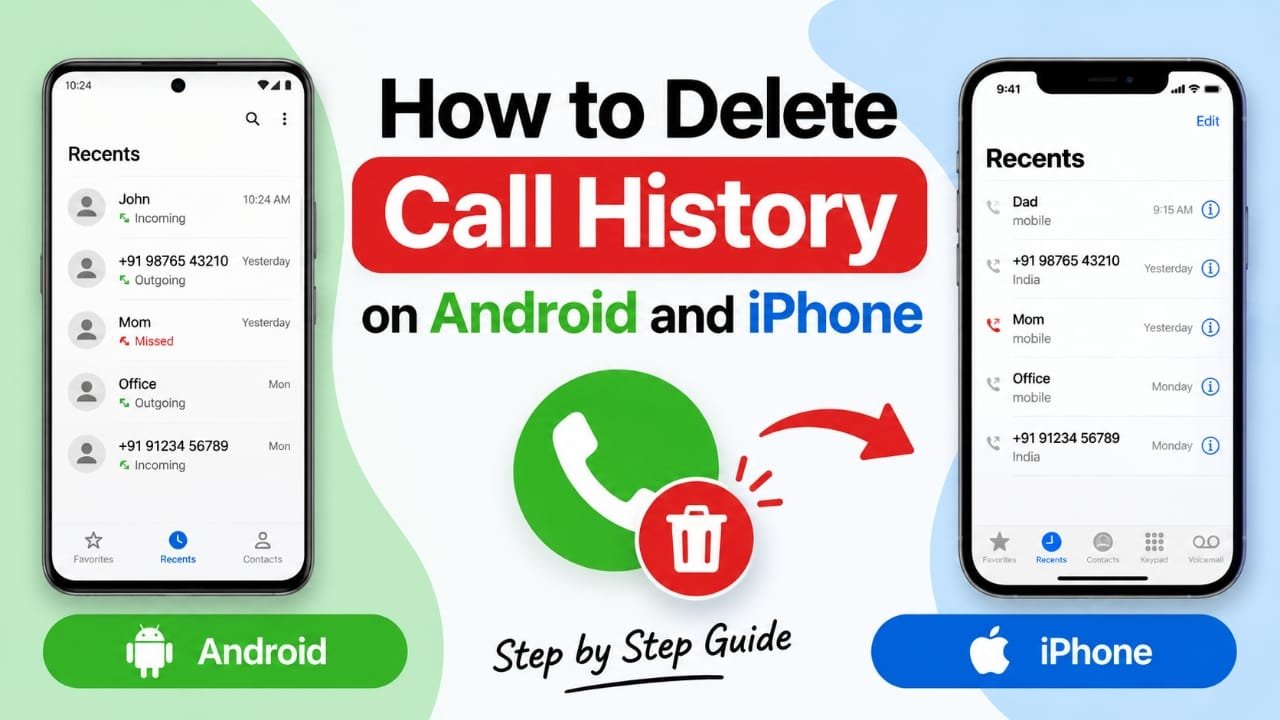
Your phone keeps a record of calls you make, receive, or miss. Over time, this list can become crowded with old numbers and unwanted entries. If you want to keep your recent calls organized or remove certain records for privacy reasons, you can delete them directly from your phone.
The exact options can vary slightly depending on the Android phone model or software version. iPhone users can manage their call history through the built-in Phone app.
Here’s how to remove individual calls or clear your recent call list.
Also read: E2PDF Review: A Simple Way to Back Up SMS, Call Logs and Contacts
How to Delete Call History on Android
Most Android phones allow you to remove one call, several calls, or the entire call history. The menu names can differ between manufacturers, but the general process is similar.
Delete a Single Call
If you only want to remove one entry:
- Open the Phone app.
- Go to Recents, Recent calls, or Call history.
- Find the call you want to remove.
- Depending on your phone, swipe the entry, long-press it, or open its options menu.
- Select Delete or the trash-bin icon.
The selected call should then disappear from your recent call list.
Delete Multiple Calls
Some Android phones also let you select several entries at once.
- Open the Phone app.
- Open your recent calls or call history.
- Tap the menu icon or More options.
- Look for Delete, Clear, or a similar option.
- Select the calls you no longer want.
- Confirm the deletion.
If your phone provides a Clear call history option, you can use it to remove the available call records in one go.
How to Delete Call History on Samsung Phones
Samsung’s Phone app may use slightly different menus depending on the One UI version.
Advertisements
Generally:
- Open the Phone app.
- Tap Recents.
- Tap the three-dot menu.
- Choose Delete.
- Select the call entries you want to remove, or select all available entries.
- Tap Delete again to confirm.
If the options look different on your Samsung phone, check the menu available inside the Recents screen.
How to Delete Call History on Xiaomi Phones
On Xiaomi devices, the available options can depend on the Phone app and software version.
Try these steps:
- Open the Phone app.
- Go to the recent calls section.
- Select the call or calls you want to remove.
- Tap Delete or the trash icon.
- Confirm when prompted.
If you want to remove the entire list, look for a Clear call history option in the available menu.
How to Delete Call History on Huawei Phones
Huawei phones may use different labels depending on the EMUI version.
- Launch the Phone app.
- Open the recent calls or call history screen.
- Tap and hold a call, or open the available menu.
- Select Delete or Delete entries.
- Choose the records you want to remove.
- Confirm the action.
How to Delete Call History on Motorola and Google Pixel
Google’s Phone app is commonly used on Pixel and many Motorola devices.
To remove a call:
- Open the Phone app.
- Find the call under Recents.
- Tap the call or its details/options.
- Choose the available Delete option.
For clearing several records, open the menu in the call history section and look for the option to delete or clear recent calls.
What About Other Android Phones?
Phones from brands such as OPPO, vivo, TECNO, Sony, ASUS, and others may have slightly different menus.
In most cases, the process follows the same basic pattern:
Phone app → Recent calls/Call history → Select calls → Delete
If you cannot find the option, check the three-dot menu or press and hold the call entry. The exact wording may change with the phone model and software version.
Can You Delete Call History Using a Computer?
There are third-party Android management programs that claim to provide additional ways to view, back up, or manage call logs from a computer.
However, you should be careful before installing such software. A computer-based tool may require permissions such as USB debugging or access to personal information on the phone.
For simply deleting recent calls, the built-in Phone app is usually the simplest option. If you use third-party software, download it only from a trustworthy source and review the permissions it requests.
How to Delete Call History on iPhone
iPhone users can remove call records directly from the Phone app. You can delete a particular call or clear the available recent-call list.
Delete One Call on iPhone
Follow these steps:
- Open the Phone app.
- Tap Recents.
- Find the call you want to remove.
- Swipe left on the entry.
- Tap Delete.
The selected call will be removed from the Recents list.
Delete Multiple or All Recent Calls
You can also use the editing options in the Recents section.
- Open the Phone app.
- Tap Recents.
- Tap Edit.
- Select the calls you want to remove, if the available option allows individual selection.
- Use the delete option to remove them.
On supported iOS versions, you can also use the Clear option to remove all recent calls and then confirm the action.
What Happens After You Delete a Call?
Deleting a call from your phone’s recent-call list removes that record from the list displayed by the Phone app.
It does not necessarily mean that the same information has disappeared from every other system. For example, your mobile carrier may maintain its own call records, depending on its policies and the type of information it provides to customers.
So, deleting a call from your phone should not be considered the same as deleting your carrier’s records.
Can Deleted Call History Be Recovered?
If you accidentally remove an important call record, recovery may not always be possible directly from the Phone app.
Your options depend on the device, backup settings, software version, and where the call information was stored.
For an iPhone, restoring an older backup may restore the device to an earlier state. However, restoring a backup can also affect other data that changed after that backup was created, so it should not be done casually.
You can also check with your mobile carrier if you need information about past calls. The records available to you will depend on the carrier and your account.
Why Should You Clear Old Call Logs?
Deleting unnecessary call records can be useful for several practical reasons.
1. Better Privacy
Recent calls can reveal phone numbers and information about who you communicate with. Removing unwanted entries can help keep that information out of the Phone app if someone else gets access to your unlocked device.
2. A Cleaner Recent Calls List
A long list of old calls can make it harder to find a recent conversation. Removing entries you no longer need keeps the list easier to manage.
3. Removing Unwanted Records
You may have calls from businesses, delivery services, temporary contacts, or numbers you no longer need. Deleting these entries can make your call history less cluttered.
4. Managing a Shared or Temporary Device
If a phone is going to be used by another person, clearing unnecessary call records can help prevent them from casually seeing your previous calls.
5. Keeping Personal Information Organized
Regularly reviewing your recent calls gives you a chance to remove information you no longer need and keep your phone better organized.
Things to Remember Before Deleting Call History
Before clearing your call records, make sure you do not need any of the information later.
If a number is important, consider saving it as a contact first. You can also make a note of important call details before deleting the entry.
Also remember that deleting a call from your phone does not necessarily remove records maintained by your mobile carrier or other services.
Also read: How to Delete WhatsApp Call History on Android and iPhone
Final Thoughts
Deleting call history is a simple way to keep the Recents section of your phone organized. Android users can usually remove individual or multiple calls through the Phone app, although the exact menus depend on the device and software version.
On an iPhone, call records can be managed from Phone → Recents, where individual entries can be removed or the available recent-call list can be cleared.
If you are deleting call history for privacy reasons, also remember to protect your phone with a strong screen lock and avoid giving unnecessary apps access to your personal information. For most users, the built-in phone features are enough to manage everyday call records safely.
