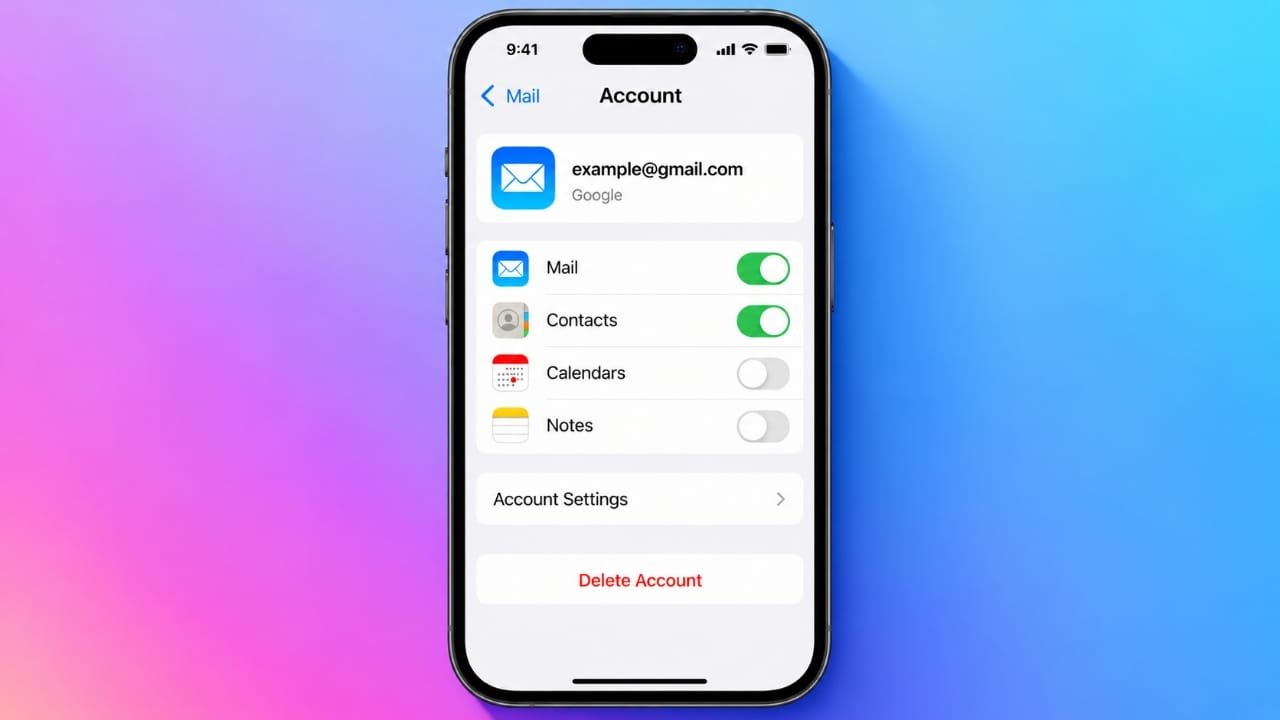
Removing an email account from an iPhone is useful when you no longer want that account connected to the Mail app. The process is simple and usually takes only a few steps.
Keep in mind that removing an account from your iPhone does not usually delete the email account itself. Your Gmail, Outlook, Yahoo, or other email address will normally continue to exist with the email provider.
Also read: How to Buy Ringtones on iPhone from the Tone Store
Things to Check Before Removing an Email Account
Before deleting the account from your iPhone, it is worth checking a few things:
- Make sure you know the account password and recovery details in case you need to sign in again.
- Check whether the account is also syncing contacts, calendars, notes, or other information.
- If you use an older POP email setup, check whether any important messages are stored only on the device.
- If the account belongs to your employer or school, check whether it is controlled by an organization before making changes.
These checks can help prevent accidental loss of access to information on your device.
Steps to Remove an Email Account From iPhone
On newer versions of iOS, you can generally remove an email account using these steps:
- Open the Settings app on your iPhone.
- Tap Apps.
- Select Mail.
- Tap Mail Accounts.
- Choose the email account you want to remove.
- Tap Delete Account or Sign Out, depending on the account type.
- Confirm your choice when prompted.
On some older iOS versions, you may find the account settings under Settings > Mail > Accounts.
After removal, emails and other information synchronized through that account will no longer appear on the iPhone. Data stored on the email provider’s servers is generally not deleted simply because the account was removed from the phone.
Want to Stop Email Temporarily? Turn Off Mail
You do not always need to remove an account completely.
If you only want to stop receiving messages temporarily, open:
Advertisements
Settings > Apps > Mail > Mail Accounts > Select the Account
Then turn off the Mail option.
Depending on the account, you may be able to keep other services such as contacts or calendars active. This can be useful if you want to take a break from email without disconnecting the entire account.
How to Stop Email Notifications
If your main problem is frequent email alerts, removing the account may not be necessary.
You can change notification settings by going to:
Settings > Notifications > Mail
From there, you can adjust alerts, sounds, and badges. You can also use a Focus mode to reduce email interruptions during specific times, such as evenings or weekends.
This option lets you keep your email account connected while reducing notifications.
How to Add the Email Account Back
If you change your mind later, you can add the account again.
- Open Settings.
- Tap Apps.
- Select Mail.
- Tap Mail Accounts.
- Choose Add Account.
- Select your email provider or choose Other if it is not listed.
- Enter the requested account details.
- Select the services you want to synchronize.
You may need to complete additional authentication depending on your email provider.
What If You Cannot Find the Delete Account Option?
Sometimes the option to remove an account may not be available.
Possible reasons include:
- Restrictions configured through Screen Time.
- A company or school management profile controlling the device.
- The account being connected to your main Apple Account or iCloud configuration rather than being a regular Mail account.
If your iPhone is managed by an organization, check Settings > General > VPN & Device Management before removing any management profile. Removing an organizational profile can affect access to work or school resources.
If you are unsure why an account cannot be removed, it is better to check the relevant Apple or organization instructions before changing device-management settings.
Does Removing an Email Account Delete the Email Address?
No. Removing an account from the iPhone and permanently deleting an email account are two different actions.
For example, if you remove a Gmail account from your iPhone, you are normally only disconnecting it from that device. The Gmail account itself remains available through Google’s services unless you separately choose to delete it.
The same general principle applies to other email providers.
Also read: How to Set Up and Use a Personal Hotspot on iPhone
Final Thoughts
Removing an email account from an iPhone is straightforward, but you should first check whether the account is syncing other important information.
If you simply want fewer email interruptions, turning off Mail or changing notification settings may be a better option than removing the account completely.
If you later need the account again, you can usually add it back through the Mail account settings on your iPhone.
