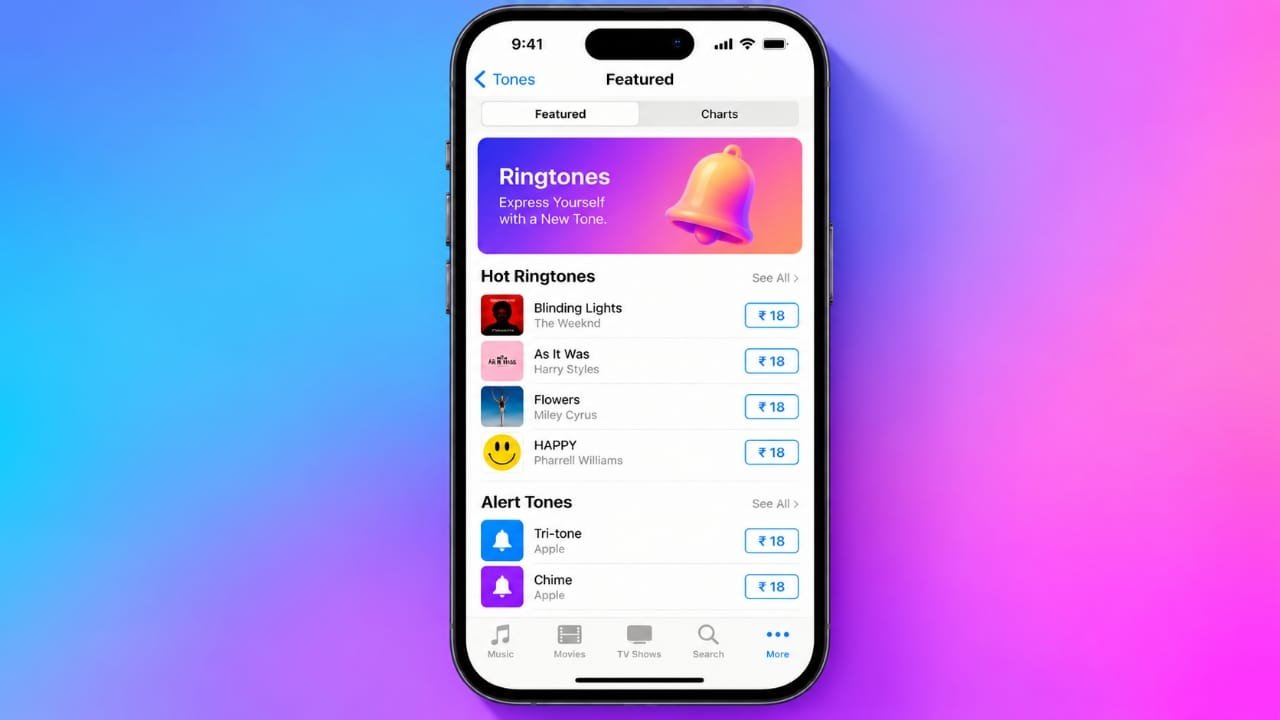
If you want a different ringtone on your iPhone, you can purchase one directly through Apple’s Tone Store. The process is straightforward, and you can also assign a purchased tone to a specific contact.
Also read: WAPro App for WhatsApp – Features, Uses and Helpful Tips
How to Purchase a Ringtone on iPhone
You can buy ringtones through the iTunes Store app. Keep in mind that the iTunes Store and Apple Music are separate apps.
Follow these steps:
- Open the iTunes Store app on your iPhone.
- Tap Tones. On some versions, you may need to tap More first.
- Browse the available tones or use the search option to find something specific.
- Tap a tone to listen to a preview.
- If you like it, tap the displayed price.
- Confirm the purchase using Face ID, Touch ID, or your Apple Account password.
- Depending on the available options, you can choose how you want to use the tone.
You can also access the Tone Store through Settings > Sounds & Haptics > Ringtone > Tone Store on supported iPhones.
Are iPhone Ringtones Included with Apple Music?
No. An Apple Music subscription does not automatically include Tone Store purchases.
A song being available in Apple Music also does not mean that the same song is available as a ringtone. Tone availability and pricing can also vary depending on your country or region.
How to Set a Purchased Tone as Your Ringtone
After purchasing a tone, you can select it as your main ringtone.
- Open Settings.
- Tap Sounds & Haptics. Some older iOS versions may use a different label.
- Select Ringtone.
- Choose the tone you purchased.
The selected sound will then be used for incoming calls.
How to Give a Specific Contact a Custom Ringtone
You can also use different ringtones for individual contacts. This can make it easier to identify certain callers without checking your screen.
Advertisements
Here’s how:
- Open the Contacts app.
- Select the contact.
- Tap Edit.
- Choose Ringtone.
- Select the sound you want to use.
- Tap Done.
You can also assign a separate text tone to a contact when that option is available.
Your normal ringtone will continue to be used for other contacts unless you assign them a different sound.
How to Download Previously Purchased Tones Again
If you have already purchased eligible tones but they are not currently available on your iPhone, you may be able to download them again without purchasing them a second time.
Go to:
Settings > Sounds & Haptics
Then open the relevant ringtone or alert section and look for Download All Purchased Tones.
This option may not be shown in every situation. For example, all eligible purchases may already be downloaded, the current Apple Account may not have any qualifying tone purchases, or a previously purchased item may no longer be available in your region.
What to Do If the Tone Store Is Not Showing
If you cannot find the Tone Store or have trouble completing a purchase, try a few basic checks.
Check the iTunes Store App
Make sure the iTunes Store app is installed and available on your iPhone. Screen Time restrictions can also affect access to certain features or purchases.
Check Your Apple Account
Make sure you are signed in to the correct Apple Account and that your payment information is available if a purchase requires it.
Restart Your iPhone
A simple restart can sometimes resolve temporary problems with apps or system features.
Check for iOS Updates
Open the software update section in Settings and install an available iOS update if appropriate for your device.
Check Regional Availability
Tone Store content is not necessarily available in every country or region. If you cannot find a particular tone, regional availability may be one reason.
Avoid Buying the Same Tone Twice
If you previously purchased a ringtone but cannot see it, check for the option to download purchased tones before buying it again.
This is particularly useful if you have changed devices or are using the same Apple Account on another iPhone.
Preview a Ringtone Before Buying
It is a good idea to listen to the available preview before completing a purchase. Ringtones are short alert sounds and are not the same as having access to the complete song through Apple Music.
Also check the displayed price and availability before confirming the purchase, as these details can vary by region.
Also read: WT Hub – Web Scanner App Review: Features, Usage and Safety Guide
Final Thoughts
Apple’s Tone Store provides a simple way to purchase ready-made ringtones for an iPhone. After buying a tone, you can use it as your default ringtone or assign it to individual contacts.
Before purchasing, preview the sound, check its price and availability, and make sure you are signed in with the correct Apple Account. If a previously purchased tone is missing, check the available redownload options before paying for it again.
