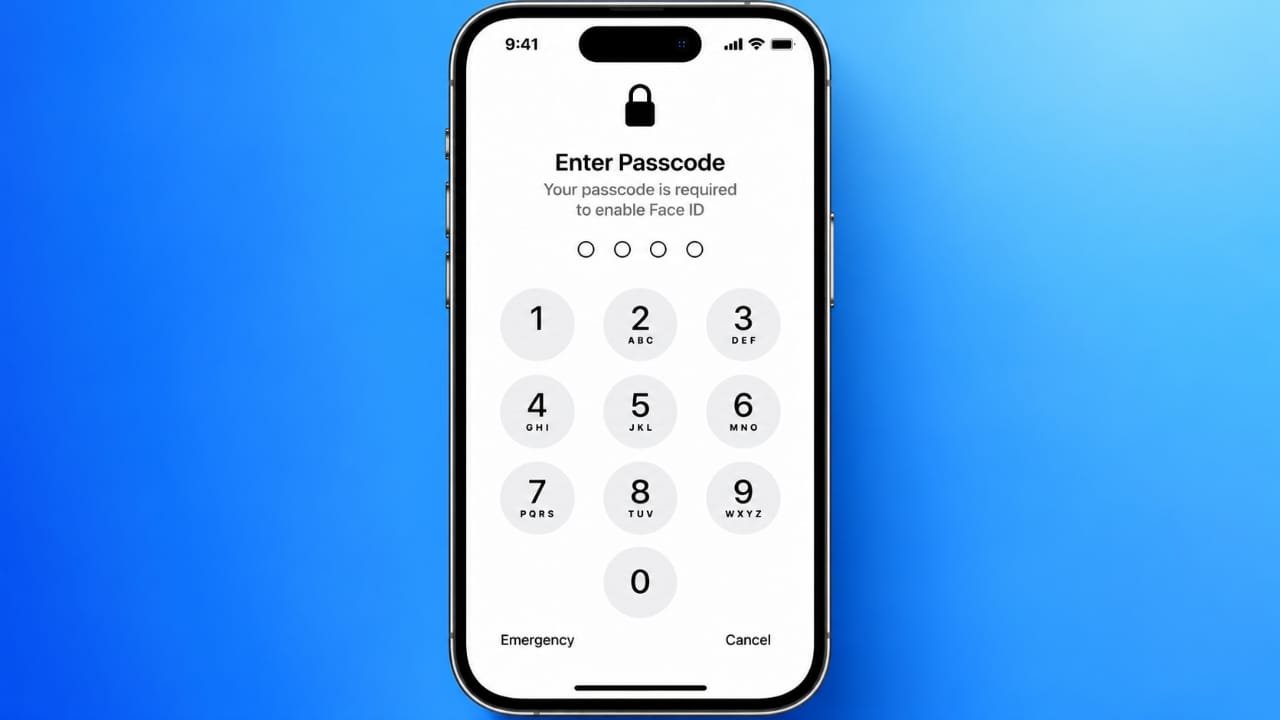
An iPhone passcode helps keep your personal information safe from unauthorized access. However, some users may prefer to unlock their devices without entering a code every time. Apple allows you to disable the passcode through the Settings app, although doing so reduces your phone’s security.
In this guide, you will learn how to turn off your iPhone passcode, what happens after disabling it, and how to troubleshoot common problems.
Also read: How to Set Up and Use Face ID on an iPhone
How to Turn Off the Passcode on an iPhone
You can remove your current passcode directly from your iPhone settings. Follow these steps:
- Open the Settings app on your iPhone.
- Select Face ID & Passcode. If your device has a Home button, choose Touch ID & Passcode instead.
- Enter your current passcode to access the security settings.
- Scroll down and tap Turn Passcode Off.
- Read the security warning and confirm your choice.
- If prompted, enter your Apple Account password or complete any additional verification requested by your device.
Once the process is complete, your iPhone will no longer require the device passcode to unlock. You can return to the same settings menu later if you want to enable it again.
What Happens When You Disable Your iPhone Passcode?
Turning off the passcode changes how your iPhone protects your personal information. Before making this change, it is important to understand the possible consequences.
Reduced privacy: Someone who gets hold of your unlocked or passcode-free iPhone may be able to access your messages, photos, contacts, and other information available on the device.
Face ID and Touch ID limitations: Biometric authentication depends on having a device passcode configured. Disabling the passcode also removes its role in protecting access to your phone.
Changes to Apple Pay and Wallet: Some payment and security features may stop working until you set a passcode again.
Your personal files usually remain intact: Turning off the passcode does not normally delete your photos, contacts, messages, or installed apps.
If you want faster access without sacrificing too much security, consider keeping your passcode enabled and using Face ID or Touch ID where available.
Why Is the Turn Passcode Off Option Greyed Out?
Sometimes, the option to disable the passcode is unavailable. This can happen because of device management settings or restrictions.
1. Check for a Device Management Profile
An iPhone provided by a workplace or school may have security rules that require a passcode. These requirements can prevent you from turning it off.
To check for a management profile:
- Open Settings.
- Go to General.
- Tap VPN & Device Management.
- Look for any management profiles listed on the device.
If your iPhone is managed by an organization, contact its IT administrator for help. Avoid removing a management profile without understanding its purpose.
2. Review Screen Time Restrictions
Screen Time settings may restrict certain changes on your device.
Open Settings > Screen Time > Content & Privacy Restrictions and review the available restrictions. The exact options can vary depending on your iOS version and configuration.
If a relevant restriction is enabled, check whether you are authorized to change it. You can also restart your iPhone and check the passcode settings again.
If the option remains unavailable, additional restrictions or security policies may be responsible.
What If You Have Forgotten Your iPhone Passcode?
You cannot disable a forgotten device passcode through the normal Settings menu because Apple requires the current passcode to access these controls.
If you cannot unlock your iPhone, you will need to follow Apple’s official passcode recovery procedure. This generally involves resetting the device, which erases its existing contents.
Before beginning, check whether you have a recent iCloud or computer backup. A backup may help you restore your information after the reset, although the data available for recovery depends on what was backed up.
For the safest approach, follow the recovery instructions provided by Apple for your specific iPhone and iOS version.
Is It a Good Idea to Turn Off Your iPhone Passcode?
For most people, keeping a passcode enabled is the better choice. It provides an important layer of protection if the phone is lost, stolen, or accessed by someone else.
If entering a passcode feels inconvenient, Face ID or Touch ID can make unlocking much faster while maintaining device security. You can also review your passcode settings to find a balance between convenience and protection.
If you decide to disable the passcode temporarily, remember that your iPhone will be less protected while it remains disabled. To restore protection, open the relevant passcode settings and select Turn Passcode On. Follow the instructions on the screen to set up a new passcode.
Also read: How to Create and Share a Wi-Fi QR Code on Android and iPhone
Final Thoughts
Turning off the passcode on an iPhone is a straightforward process when you know your current code and have permission to change the device’s security settings. However, removing it can expose your personal information and affect certain features.
Before making the change, consider whether easier access is worth the reduction in security. For everyday use, keeping your passcode enabled and relying on Face ID or Touch ID is generally the more secure and convenient option.

Advertisements